Showing posts sorted by relevance for query bots. Sort by date Show all posts

Tuesday, December 11, 2018

Get Started with Bots!


Hangouts Chat makes it easy for teams to be able to get their work done in one place. From direct messages to group conversations, Chat helps teams collaborate easily and efficiently. With dedicated, virtual rooms to house projects over time — plus threaded conversations — Chat makes it simple to track progress and follow up tasks.


Google's Bots are special accounts you can chat with, just as you would with people. Bots provide a conversational way for you to connect to services in Hangouts Chat, such as looking up information, scheduling meetings, performing tasks and so on.

From your Google Chat Dashboard, Navigate to the: Find Person, room, or bot section in the top left corner, then select: Message a Bot. That will show a number of popular bots where you can search through. 


Bots are created by software developers and added to Hangouts Chat by Google. Every Hangouts Chat user can use bots, including the @meet bot.

Google Hangouts Chat isn't just for talking to people - it's also a great place to chat with your bots, too. They can help you book meetings, find flights, poll your team, check your calendar and much more - they are very interactive and powerful.

In Hangouts Chat, you can add bots to a specific room, or you can chat with them directly on your own. There are bots already built for Hangouts Chat today, including Meet, Drive, Giphy and more. 
The Drive bot will update you about new comments, access request, files share with you and your storage. The Giphy bot will insert GIF's directly into your chat room.
The Summarize bot can extract the most important information, keywords and key phrases from:
• weblinks and documents - just share your link with the bot or copy-paste your text • audio files • images with text.
You can ask the Meet bot to check your calendar or book a meeting with someone else on your team or in your organization.
Review Use @meet bot for instructions on how to use a bot to set up a meeting.

For help in getting started with Hangouts Chat please contact: ITS@manhattan.edu or TEL: 718-862-7973

Thursday, June 4, 2020

Important Message About The Manhattan College Transition to Google Chat on June 15th

We’re excited to share that we’ll be transitioning everyone at Manhattan College to Google’s newest enterprise-grade collaboration product, Google Chat. Chat has a modern/easy viewing interface as well as team rooms that support better team collaboration, emoji reactions to make work fun, and bots to help you be more productive. Manhattan College is receiving early access to some great new features, such as an upgraded Gmail integration and the ability to chat with external users (non-Manhattan College users).

Beginning Monday, June 15th, 2020, all teams will be using Chat for direct messages (DMs), group messages, and team discussions. Classic Hangouts apps will no longer be accessible in Gmail..

How do I get Google Chat?


It's important to do the following before 6/15 as classic Hangout apps will stop working:
  1. Explore the new Web experience at chat.google.com
  2. Download the new mobile app for Android or iOS.
  3. Please make sure you install the Chat mobile app (Android or iOS) before 6/15 to minimize chances of missed messages.
  4. Download the new standalone desktop app if you've been using the classic Hangouts Chrome extension or app. You'll be able to access the desktop app from a prompt that will appear inside chat.google.com
  5. On 6/15, refresh your Gmail to get the new Chat in Gmail experience.

Where do I find my old chats?

  1. You will be able to continue recent direct messages from classic Hangouts in Google Chat, but group messages from classic Hangouts (including their history) will not be migrated to Google Chat. This means on 6/15 you will no longer see any group messages you had using classic Hangouts in your Google Chat.
  2. All previous chat history from classic Hangouts will be accessible in the Gmail Chat label.
  3. The classic Hangouts web interface for chat, hangouts.google.com will remain available during this transition in case you need more time to access and move certain group conversations. Users cannot chat in classic Hangouts by visiting hangouts.google.com in a mobile browser. Using hangouts.google.com will be the only way to access your classic Hangouts group chats.
  4. The classic Hangouts bot in Chat will also notify you of missed group messages from classic Hangouts. This means if you are using Google Chat and someone messages a classic Hangouts group you are in, you will receive a message with a link to the conversation. Please use this link for further assistance if you need to add the classic Hangouts bot to Google Chat. 

What are the limitations of Chat?


1. Google Voice and Google Fi are not currently available through Chat:
    • Users who already have a Google Voice account can access Google Voice at voice.google.com, by selecting Voice from the App launcher , or by downloading the Google Voice app (Android, iOS).
    •  Google Fi users must use the default SMS app on their mobile device to send and receive SMS messages
2. Group messages from classic Hangouts (including their history) will not be migrated to Chat. Users can still access these group messages in hangouts.google.com.

       If you have important group messages in classic Hangouts, we recommend that you recreate them as Rooms in the new Chat.


3. Group direct messages and rooms that are started in the new Chat will not send messages to users who are still on the classic Hangouts apps.

Where do I go for help?

G Suite Learning Center for more information about the new Chat.


Sunday, April 14, 2019

Week 8 Tech Showcase - G Suite Productivity Apps

G Suite

G Suite is Google's full range of productivity apps based in the cloud that allow you to connect, access, and create. Clicking on each app name will direct you to the G Suite Learning Center for that product.

With G Suite, you can connect by utilizing Gmail, Google Calendar, and Hangouts Chat, and Hangouts Meet.

Image result for gmail icon

Gmail allows you to be updated with secure, private, and ad-free email. In addition, Gmail keeps you updated with real-time message notifications, and safely stores your important emails and data.

Image result for google calendar icon

Google Calendar allows you to set up events on a cloud based calendar, and it is integrated seamlessly with Gmail, Drive, Contacts, Sites and Hangouts. You can also schedule events quickly by checking coworkers' availability or layering their calendars in a single view. You can share calendars so people see full event details or just if you are free.

 Image result for hangouts chat icon

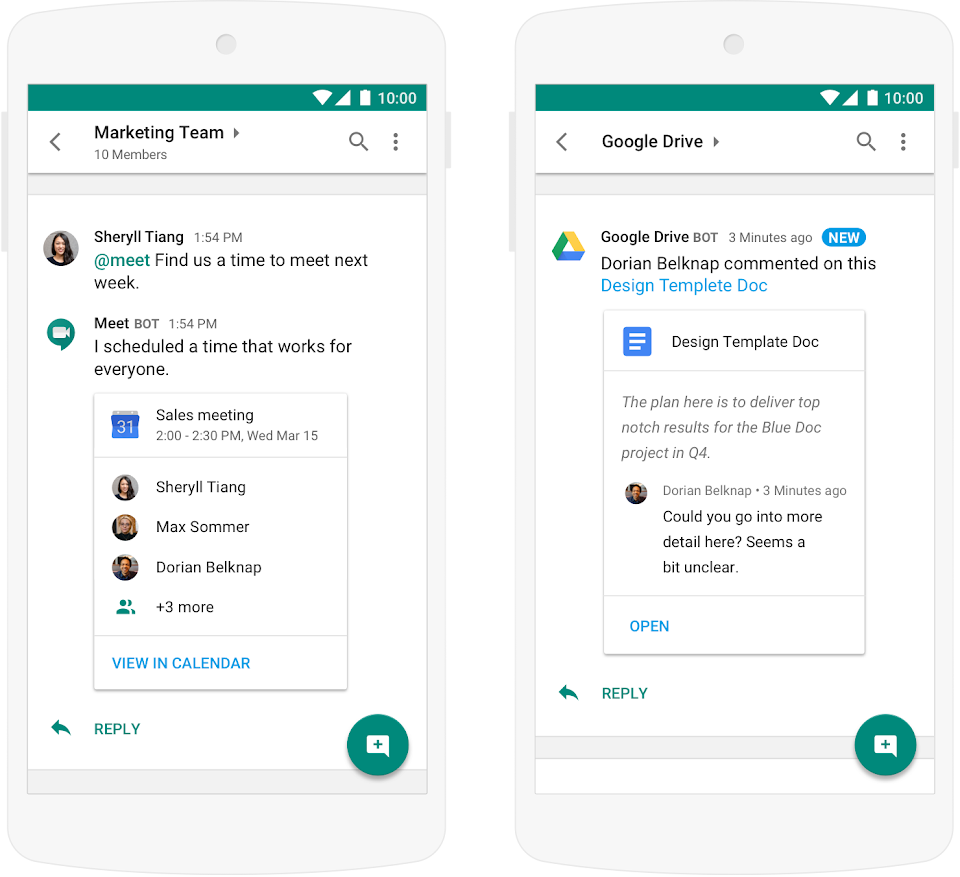
    Hangouts Chat is an instant messaging solution that allows for communication either with one person or an entire group. It also features bots that can integrate other Google features such as Google Calendar and Google Drive as shown in the following image.


    Image result for hangouts meet

    Hangouts Meet is a video conferencing solution that will be covered in next week's Tech Showcase.

    Image result for google drive icon\

    G Suite also allows you to utilize cloud storage using Google Drive. G Suite allows you to have unlimited Google Drive cloud storage. This means you can store, access, and share your files in one secure place. You have the ability to access files anytime, anywhere from your desktop and mobile devices. Google Drive is especially useful for using less space on your device.

    Additionally, you can create Team Drives which foster collaboration by allowing a shared drive where multiple people can upload files.

    With G Suite, you can also create Google Docs, Slides, Sheets, and Forms. These programs are Google's word processor, presentation, and spreadsheet programs.

    Image result for google docs

    Google Docs allows you to create and edit text documents right in your browser with no dedicated software required. Multiple people can work at the same time, and every change/revision is saved automatically. It also allows you export to other file types such MS Word, PDF, etc. It can also convert Word files to Docs.

    Image result for google slides

    Google Slides allows you to create and edit presentations in your browser with no software required. Multiple people can work at the same time, and every change/revision is saved automatically. It also allows you export to other file types such PPT, PDF, etc. It can also convert PPT files to Slides.

    Image result for google sheets icon

    Google Sheets allows you to create and edit spreadsheets in your browser with no software required.
    Multiple people can work at the same time, and every change/revision is saved automatically. It also allows you export to other file types such Excel, PDF, etc. It can also convert Excel files to Sheets.

    Image result for google forms

    Google Forms allows you to easily create forms for surveys and questionnaires. Responses can be tracked from Google Forms as well as Google Sheets where it is integrated seamlessly.

    We are interested in your feedback, please take a few moments to complete the following G Suite Productivity Apps Survey

    Wednesday, August 8, 2018

    Updates to JasperNet Account Self-Help Tool (start.manhattan.edu) Coming Soon


    Updates to the college's JasperNet Account self-help tool: start.manhattan.edu will be released this week.

    The 24/7 start.manhattan account tool allows one to activate a new account, reactivate an old account, and manage account access credentials.

    The update better aligns the design with the college's current online web presence. As part of the update, we have also committed to following the practice of accessible web design to insure that the web pages are usable by everyone.

    Besides the visual facelift, the tool update includes:
    • a front-page reorganization, with a more prominent Account Management section for existing users to provide or update an account recovery email address and change password, as needed
    • more and better confirmation emails at numerous steps of the account activation and management process, with emphasis on new user onboarding
    • a new Captcha solution, which replaces the challenge of deciphering characters or audio with a simple action to be taken by the person using the site. This functions to ensure that internet users filling out forms are indeed humans, thwarting the amount of spam produced by bots 

    We encourage you to take a look at the new tool, and perhaps take the opportunity to update and/or provide a recovery (personal) email address for your account.  This will allow you to recover your account in the future without the involvement of ITS.  We also encourage you to change your password.

    Additional workflow enhancements to streamline the employee onboarding process will be added in the coming weeks.

    Screenshot of new Start. self-help tool
    start.manhattan.edu self-help JasperNet account tool


    Monday, February 11, 2019

    Start using Hangouts Chat right now


    Beginning April 16, 2019, Google Hangouts Chat and Meet together are the next version of Hangouts. They will replace the original version (classic Hangouts) in G Suite.  

    Classic Hangouts will be retired for all G Suite customers starting in October 2019 and all remaining users will be transitioned to Chat.

    This means all classic Hangouts users can also use Chat at chat.google.com or by installing the Chat mobile or computer apps.


    Hangouts Chat is for continuous text chat with your team. Hangouts Chat was implemented by many people who transitioned from classic Hangouts. The chat app is filled with many features to work productively. Google has included a bot it calls @meet that can look at the schedules of anybody in a group chat and automatically suggest a meeting time then schedule it directly in Google Calendar. For more information review Get Started with Bots! ITS blog post.
    Hangouts Meet is how teams communicate using video calls, one can easily hold video meetings with people inside or outside their organization.


    Hangouts Chat and Hangouts Meet are the next generation of Hangouts that focus on team communication. Later this year, Google will  transition classic Hangouts users to Chat and Meet.


    Classic Hangouts Timeline:


    Classic Hangouts is a Google video messaging app. It is being phased out and will be retired for all G Suite customers in October 2019.


    For more information review material from Google on these apps: Switching from classic Hangouts to Hangouts Meet.

    For further details please review:  Upcoming Hangouts service consolidation for all G Suite customers

    For help in getting started with Hangouts Chat please contact: ITS@manhattan.edu or TEL:  718-862-7973.