Showing posts with label Android. Show all posts

Wednesday, November 29, 2023

Updates to the Google Drive scanner on Android & iOS devices


What’s changing

For years, users have had the ability to scan physical documents, such as a receipt or passport, using the Google Drive app on Android devices. And earlier this year, we added additional functionality to recommend relevant title suggestions for scanned documents by leveraging machine learning. 

Today, we’re introducing additional enhancements to the Drive scanner on Android devices, which now powers the Google Pixel camera and includes improvements to the scanner experience when capturing content. Specifically, you’ll notice: 
  • Automatic capture to help you get the best scan quickly 
  • Camera viewfinder that helps you position your document for the highest quality scan 
  • The option to import from your camera roll 
  • A faster way to initialize a scan with a new scanner button 
Android Scanner

We’re also expanding the Google Drive scanner and title suggestion feature to iOS devices. Now, when using your iOS phone or tablet, you can easily scan and digitally organize physical documents, crop them if needed, and receive relevant title suggestions based on machine learning. 
iOS Scanner


Getting started

    • Open the Drive app on your Android device > scan a document via the camera icon or scan a document via the Scan button under the “+” icon > assess/adjust the automatic cropping > scan multiple pages in a session (if needed) > apply filters > save to Drive. 
    • Open the Drive app on your iOS device > scan a document via the camera icon or scan a document via the Scan button under the “+” icon > > scan multiple pages in a session (if needed) > click on scan to apply filters or crop as needed > save to Drive. 
    • Note: Title suggestions are only available in the US. 
    • Visit the Help Center to learn more about scanning documents with Google Drive. 

Rollout pace

iOS: 
  • Full rollout (1–3 days for feature visibility) starting on November 28, 2023 
Android: 
  •  This feature is now available 

Availability 

  • Available to all Google Workspace customers and users with personal Google Accounts 

Resources 

Monday, July 19, 2021

New Feature: Change your background in a Meet on your smartphone or device

You can now change your background in a Google Meet when you are on your smartphone or device! 


Google has announced the roll out of this new feature for both Android and Apple operating systems. To download the Google Meet app for Android OS, click here and to download the app for Apple OS, click here.

For more direction on how to change your background on your smartphone or device, please check out this link. 

Monday, September 9, 2019

Glance MC Mobile App

Glance MC is an app developed by Manhattan College students that puts all the resources you will need at Manhattan College in one place. With the Glance MC app, you can:
  • Search for employees and quicklinks
  • Access Digital Jasper card to use as your Campus ID on campus to purchase food.
  • Save employees and Quicklinks to your Favorites
  • View the feed which displays pertinent information such as Announcements, News, Twitter, Campus Alerts, ITS News and Outages.
  • View the calendar featuring events happening on campus.
  • Read the latest articles from the Quadrangle
  • Access Moodle for course information and more

We are interested in your feedback, please take a few moments to complete the following Glance MC Mobile App Survey

Additional Resources:
Using Glance MC

Reach out to IT Services with any questions:

Thursday, August 29, 2019

Kramer VIA GO Wireless, AirPlay Version 2 Presentation System

The Kramer VIA GO, which is being labeled as AirPlay Version 2, is a new wireless presentation solution found in all classrooms on campus. 

It allows you to present devices such as PC, Mac, Android/iOS, and Chromebook wirelessly.

Note that you are still able to present using AirPlay the same way as before. This new system only expands support for wireless connectivity in addition to additional features.

One of the new features the Kramer VIA GO, AirPlay Version 2 supports is the ability to present up to two devices wirelessly at the same time. For example, if two students want to present their laptops at the same time, they can do so. The Kramer VIA GO also allows you to connect to AirPlay either through their VIA app or through the AirPlay icon in Mac and iOS devices how you normally would with AirPlay. Two simultaneous connections can be made when both users are connected using the Kramer app, or one is using an AirPlay connection and the other is using a Kramer app connection. Two AirPlay connections cannot be simultaneously presented.

The Kramer VIA GO has multiple ways in which you can stream videos. The first method allows you to present videos by mirroring whatever is shown on your device. While this method works well, it is not the best way to present videos. Instead, you can present downloaded videos by using the Kramer VIA GO dashboard menu. You can drag and drop the video file onto the “VIA” logo which will automatically play the video on the projector. Alternatively, you can select Features, and the select Multimedia where you can add a library of videos, which can be selected and played individually.

Please see this KBA for detailed instructions on playing videos: Playing Video with Kramer VIA GO

Please take this brief Kramer VIA GO AirPlay Version 2 Wireless Presentation survey to let us know what you think about the Kramer VIA GO.

If you have additional questions about how to use the new Kramer VIA GO wireless presentation system please contact 
IT Services:
its@manhattan.edu or TEL: 718-862-7973

Sunday, April 7, 2019

Week 7 Tech Showcase - Glance MC Mobile App


Glance MC Mobile App


Glance MC is an app developed by Manhattan College students that puts all the resources you will need at Manhattan College in one place. With the Glance MC app, you can:
  • Search for employees and quicklinks
  • Access Digital Jasper card to use as your Campus ID on campus to purchase food.
  • Save employees and Quicklicks to your Favorites
  • View the feed which displays pertinent information such as Announcements, News, Twitter, Campus Alerts, ITS News and Outages.
  • View the calendar featuring events happening on campus.
  • Read the latest articles from the Quadrangle
  • Access Moodle for course information and more


We are interested in your feedback, please take a few moments to complete the following Glance MC Mobile App Survey

Additional Resources:
Using Glance MC

Tuesday, February 26, 2019

Week 1 Tech Showcase - Kramer VIA GO Wireless, Airplay Version 2 Presentation System

Kramer VIA GO Wireless, AirPlay Version 2 Presentation System


The Kramer VIA GO, which is being labeled as AirPlay Version 2, is a new wireless presentation solution found in all classrooms on campus.

Kramer VIA GO screen in classrooms

It allows you to present devices such as PC, Mac, Android/iOS, and Chromebook wirelessly.

Note that you are still able to present using AirPlay the same way as before. This new system only expands support for wireless connectivity in addition to additional features.

One of the new features the Kramer VIA GO, AirPlay Version 2 supports is the ability to present up to two devices wirelessly at the same time. For example, if two students want to present their laptops at the same time, they can do so. The Kramer VIA GO also allows you to connect to AirPlay either through their VIA app or through the AirPlay icon in Mac and iOS devices how you normally would with AirPlay. Two simultaneous connections can be made when both users are connected using the Kramer app, or one is using an AirPlay connection and the other is using a Kramer app connection. Two AirPlay connections cannot be simultaneously presented.

The Kramer VIA GO has multiple ways in which you can stream videos. The first method allows you to present videos by mirroring whatever is shown on your device. While this method works well, it is not the best way to present videos. Instead, you can present downloaded videos by using the Kramer VIA GO dashboard menu. You can drag and drop the video file onto the “VIA” logo which will automatically play the video on the projector. Alternatively, you can select Features, and the select Multimedia where you can add a library of videos, which can be selected and played individually.

Please see this KBA for detailed instructions on playing videos: Playing Video with Kramer VIA GO

Please take this brief Kramer VIA GO AirPlay Version 2 Wireless Presentation survey to let us know what you think about the Kramer VIA GO.

If you have additional questions about how to use the new Kramer VIA GO wireless presentation system please contact IT Services:
ITS@manhattan.edu or TEL: 718-862-7973


Tuesday, April 5, 2016

Office Lens: Record notes from you iPhone, Android Phone, or Tablet

Office Lens is a handy capture app that turns your smartphone into a pocket scanner.  Use it to take pictures of receipts, business cards, menus, whiteboards or sticky notes—then let Office Lens crop, enhance and save. Just like that—all the scanned images you capture from Office Lens are accessible on all your devices.
Here’s a quick look at some of the more significant features and capabilities that Office Lens for iPhone supports:
  • Recognizes the corners of a document and automatically crops, enhances and cleans up the image.
Office Lens 1 v2
Before-and-after look at pictures of a receipt and a paper document captured and processed by Office Lens for iPhone.
    • Identifies printed text with optical character recognition (OCR) so that you can search by key word for the image in OneNote or OneDrive.
    • Converts images of paper documents and whiteboard notes into Word documents, PowerPoint presentations and PDF files for easy editing and reformatting (see more details here).
    • Captures business cards and generates contacts you can add to your phone.
    • Inserts images to OneNote or OneDrive (as DOCX, PPTX, JPG or PDF format) and gives you options to save, export and share the image.
Office Lens 2 v2
Before-and-after look at a picture of a whiteboard, captured and processed by Office Lens for iPhone, as well as the options you have to save, export or share with others.

REPOSTED:
Read more at https://blogs.office.com/2015/04/02/office-lens-comes-to-iphone-and-android/#mMldeHMVJfC9O4Xh.99

Sunday, December 9, 2012

Using gmail and other Google apps on your iPad, iPhone, iOS or Android device

Did you know that you can use your manhattan.edu account with most all Google apps for your iPad, iPhone, iOS, or Android device? Here's the trick......

1. Download your favorite Google app from the iTunes/Play Store.

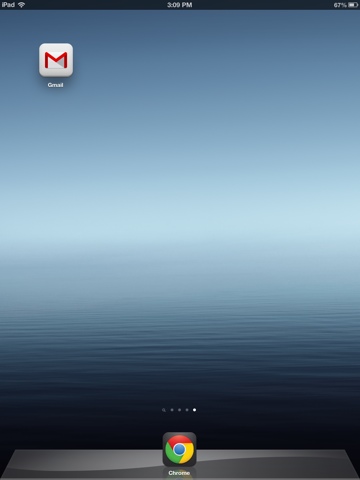
2. Open the app. In this case, we will use the Gmail app.


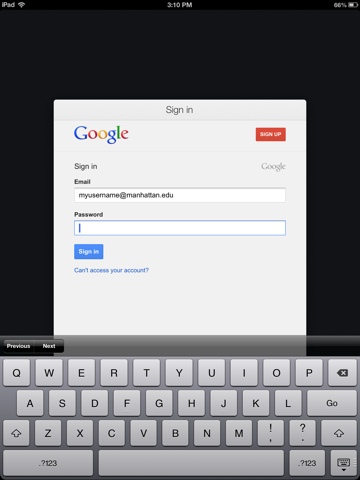
3. When prompted for your Google email and password, enter only the EMAIL in the form of your JasperNet email address. (youraccount@manhattan.edu). There is no need to enter the password at this point. Click "login".


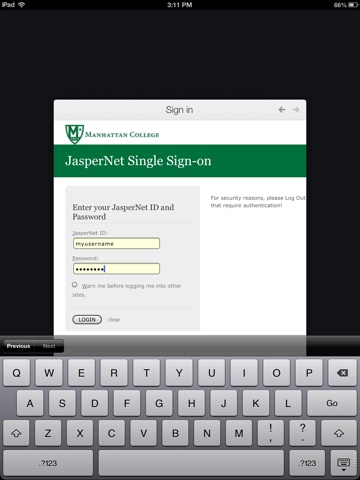
4. Once Google has validated your manhattan.edu email address, you will be forwarded to the JasperNet SingleSignOn screen. At this point, enter your JasperNet USERNAME and PASSWORD. (Not your full email address).


5. Voila!

The same steps will work whether you're setting up your new Android phone are adding a new app to your Android or iOS device that requires a Google account.  This will also work from a regular web browser.