Showing posts with label G Suite. Show all posts

Tuesday, January 21, 2020

Become a G Suite Power User!

Learn how to become a G Suite Power User!

Many of the G Suite tools allow you to utilize many powerful features and abilities. Have a look at the many resources in the G Suite for power users page to learn more about these powerful features and abilities.

With these resources you can learn more of the advanced capabilities of G Suite that can help improve your productivity at work. G Suite helps you transform your work to be faster and smarter, and to collaborate better.

For additional resources, please see G Suite for power users

Sunday, December 8, 2019

Create a Google Calendar Event Right from Gmail!

Did you know that in Gmail, you have the ability to create a Google Calendar event right from an email?


All you need to do to get started is simply select the three vertical dots button
at the top of an email, and select Create Event.
select the three vertical dots button. also know as the option or more button

select the create event button in the menu that appears after selecting the three vertical dots button in gmail

To learn more about this and other helpful features, please visit this article on The Suite Life: 3 quick tricks to help you stay on top of your schedule.


Sunday, April 14, 2019

Week 8 Tech Showcase - G Suite Productivity Apps

G Suite

G Suite is Google's full range of productivity apps based in the cloud that allow you to connect, access, and create. Clicking on each app name will direct you to the G Suite Learning Center for that product.

With G Suite, you can connect by utilizing Gmail, Google Calendar, and Hangouts Chat, and Hangouts Meet.

Image result for gmail icon

Gmail allows you to be updated with secure, private, and ad-free email. In addition, Gmail keeps you updated with real-time message notifications, and safely stores your important emails and data.

Image result for google calendar icon

Google Calendar allows you to set up events on a cloud based calendar, and it is integrated seamlessly with Gmail, Drive, Contacts, Sites and Hangouts. You can also schedule events quickly by checking coworkers' availability or layering their calendars in a single view. You can share calendars so people see full event details or just if you are free.

 Image result for hangouts chat icon

    Hangouts Chat is an instant messaging solution that allows for communication either with one person or an entire group. It also features bots that can integrate other Google features such as Google Calendar and Google Drive as shown in the following image.
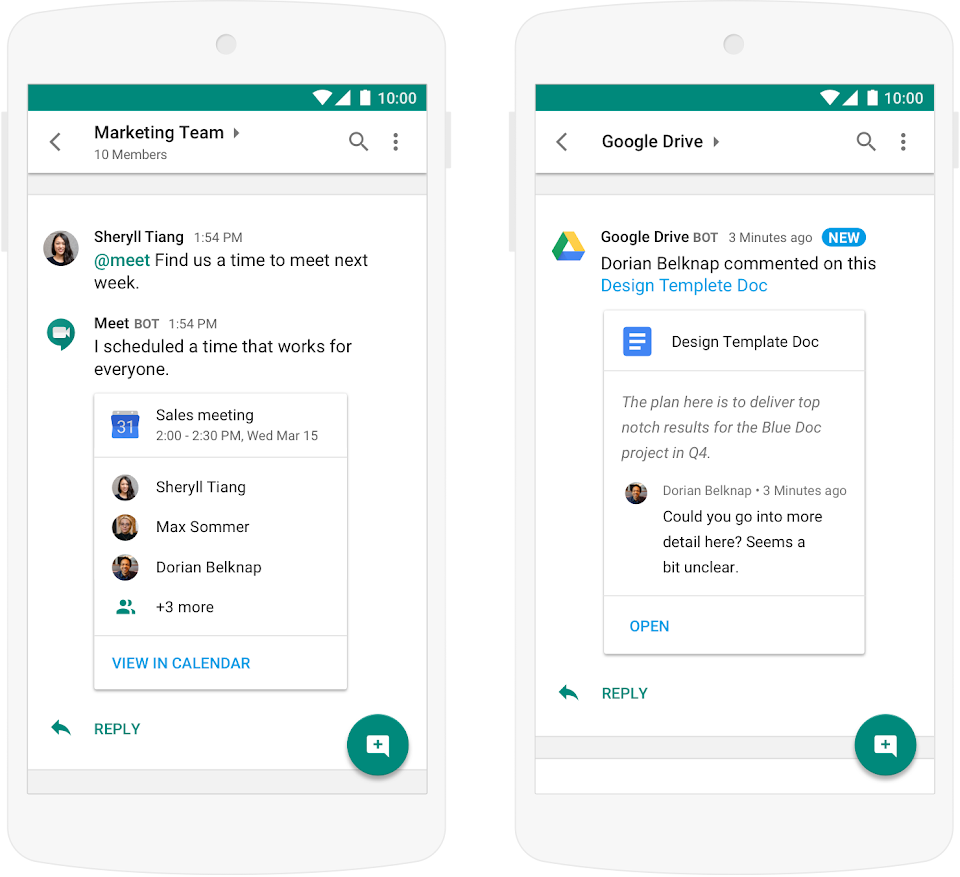


    Image result for hangouts meet

    Hangouts Meet is a video conferencing solution that will be covered in next week's Tech Showcase.

    Image result for google drive icon\

    G Suite also allows you to utilize cloud storage using Google Drive. G Suite allows you to have unlimited Google Drive cloud storage. This means you can store, access, and share your files in one secure place. You have the ability to access files anytime, anywhere from your desktop and mobile devices. Google Drive is especially useful for using less space on your device.

    Additionally, you can create Team Drives which foster collaboration by allowing a shared drive where multiple people can upload files.

    With G Suite, you can also create Google Docs, Slides, Sheets, and Forms. These programs are Google's word processor, presentation, and spreadsheet programs.

    Image result for google docs

    Google Docs allows you to create and edit text documents right in your browser with no dedicated software required. Multiple people can work at the same time, and every change/revision is saved automatically. It also allows you export to other file types such MS Word, PDF, etc. It can also convert Word files to Docs.

    Image result for google slides

    Google Slides allows you to create and edit presentations in your browser with no software required. Multiple people can work at the same time, and every change/revision is saved automatically. It also allows you export to other file types such PPT, PDF, etc. It can also convert PPT files to Slides.

    Image result for google sheets icon

    Google Sheets allows you to create and edit spreadsheets in your browser with no software required.
    Multiple people can work at the same time, and every change/revision is saved automatically. It also allows you export to other file types such Excel, PDF, etc. It can also convert Excel files to Sheets.

    Image result for google forms

    Google Forms allows you to easily create forms for surveys and questionnaires. Responses can be tracked from Google Forms as well as Google Sheets where it is integrated seamlessly.

    We are interested in your feedback, please take a few moments to complete the following G Suite Productivity Apps Survey

    Monday, May 15, 2017

    Introducing the new Hangouts Meet.

    It's easier than ever before to join a video meeting through Google Hangouts.  Not only do you have more options, but a simpler and cleaner interface.  Google Hangouts Meet is now the default video meeting option when creating a meeting in Google Calendar.  

    With Google Hangouts Meet, you can hold impromptu video meetings on the go, virtual training classes around the world, remote interviews, and much more. If you have G Suite Enterprise you can host a Hangouts Meet video meeting for up to 30 people at a time, with no time limit. For G Suite Basic and Business, a video meeting may have up to 25 participants.


    Reposted from Google Meet support:


    Wednesday, March 29, 2017

    Capture Ideas in Google Keep, bring them to life in Google Docs


    Great ideas can surface in unexpected places.  Google has created Keep to capture your thoughts anytime, anywhere -- with smart tools to help you easily organize your notes, ideas and to dos.


    Starting today, you can capture your ideas improvements for work.  Keep is now a part of G Suite.  You can also take your ideas and notes from Keep and easily add them to Docs for easier brainstorming.


    Get started by recording your notes, lists and drawings in Keep on AndroidiOS, Chrome or the web.  While in Docs on the web, access the Keep notepad, via the Tools menu.  Your Keep notes will appear in a side panel within Docs.

    Here are a few ways you can now work better with the integration between Keep and Docs.
    • Drag your notes from Keep directly into your work documents.
    • Easily search your notes in Keep while in Docs to find the information you need to complete your project.
    • Add a new note in the Keep notepad or select text from inside of your document and easily add it to a new note (just right click and select "Save to Keep notepad").  When you open that note in Keep, we'll include a link back to the source document so you can always refer back to it.

    Use Keep to capture your ideas and thoughts wherever you are, whenever inspiration strikes.  And now, quickly turn those thoughts into action -- right in Docs.

    Partially reposted from https://blog.google/products/g-suite/capture-ideas-google-keep-bring-them-life-google-docs/