Showing posts with label Detection and Prevention. Show all posts

Thursday, September 20, 2018

Do You Have a Personal Backup Plan?

Most of us would like to say that we are extremely diligent about protecting our data and backing it up on a regular basis. However, we know that this is not always the case. 

Fortunately, backups are easier than ever before thanks to a plethora of options available to most end users. It is critical to create a backup plan for important files and make sure those backups are stored in a separate location (physically or in the cloud) so you can avoid losing valuable information if your computer is lost, stolen, compromised, or simply fails to turn on one day. 

When it comes to backups, just like security, you want to find a balance of being thorough but efficient. We have all heard disastrous stories of losing homework due to the blue screen of death or a misplaced cell phone that tragically stored the only copy of family photos. In addition, you could fall victim to ransomware or another malicious attack that leaves you with no choice but to reinstall your computer's operating system (OS). It never hurts to consider your backup strategy and come up with a plan that leaves you feeling safe and secure. Here are some tips to get you started.
  • Data loss happens all the time, but it is entirely preventable. You just need to create a backup plan.
  • Your critical data should never reside in a single place.
  • The ideal backup strategy will typically include both an online backup service (Google Drive) to ensure your data is secure no matter what happens to your mobile device or computer.
  • Running consistent, automatic backups is a straightforward process that will take little time to set up and will require even less to maintain.
  • Backups can be configured to run in real time when files on your computer are changed.
  • Routinely test your backup solution to ensure you can recover your data in the event that you do actually need to restore from a backup.
Manhattan College IT Services provides unlimited cloud storage with your JasperNet credentials to faculty, staff and students so you can back up your files. If you upload your files to Google Drive you can access them from anywhere. IT Services recommends Google Drive File Stream for storage and back up of files.


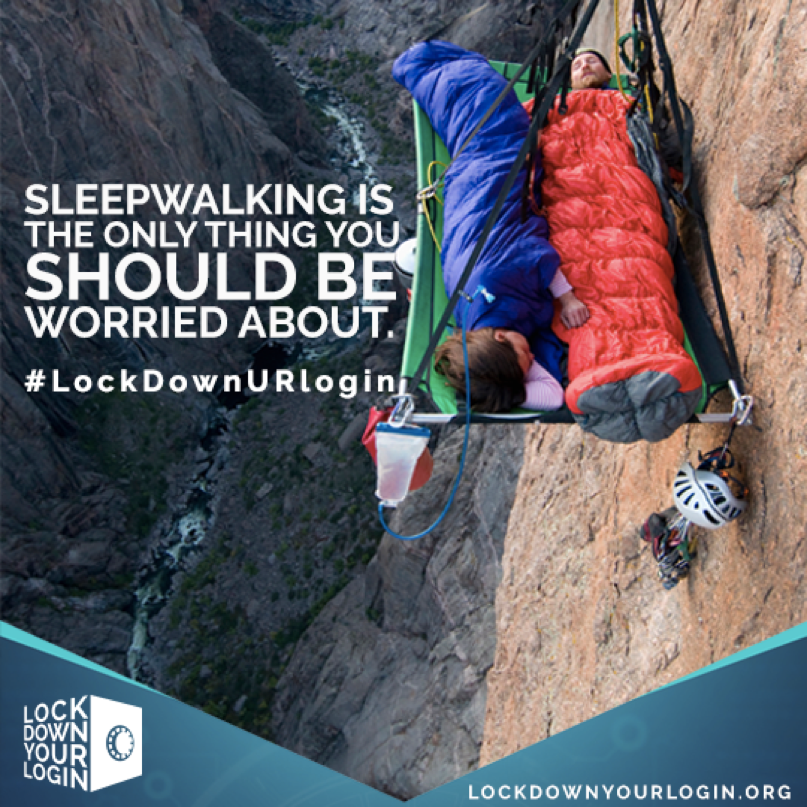
Sleepwalking is the only thing you should be worried about. #lockdownURlogin Lock Down Your Login
Source: STOP. THINK. CONNECT. 
Partially reposted from September 2018: Do You Have a Personal Backup Plan?

Monday, September 18, 2017

Avoiding Ransomware Attacks

Ransomware is a type of malware designed to encrypt users’ files or lock their operating systems so attackers can demand a ransom payment. According to a 2016 Symantec reportthe average ransom demand is almost $700 and “consumers are the most likely victims of ransomware, accounting for 57 percent of all infections between January 2015 and April 2016.”
Similar to a phishing attack, ransomware executes when a user is lured to click on an infected link or e-mail attachment or to download a file or software drive while visiting a rogue website. Sophisticated social engineering techniques are used to entice users to take the desired action; examples include
  • an embedded malicious link in an e-mail offers a cheap airfare ticket (see figure 1);
  • an e-mail that appears to be from Google Chrome or Facebook invites recipients to click on an image to update their web browser (see figure 2); or
  • a well-crafted website mimics a legitimate website and prompts users to download a file or install an update that locks their PC or laptop.


Figure 1. Phishing e-mail with ransomware embedded in a link
Figure 2. A fake Google Chrome e-mail

To avoid becoming a victim of ransomware, users can follow these tips:
  • Delete any suspicious e-mail. Messages from unverified sources or from known sources that offer deals that sound too good to be true are most likely malicious (see figure 3). If in doubt, contact the alleged source by phone or by using a known, public e-mail address to verify the message’s authenticity.
  • Avoid clicking on unverified e-mail links or attachments. Suspicious links might carry ransomware (such as the CryptoLocker Trojan).
  • Use e-mail filtering options whenever possible. E-mail or spam filtering can stop a malicious message from reaching your inbox.
  • Install and maintain up-to-date antivirus software. Keeping your operating system updated with the latest virus definitions will ensure that your security software can detect the latest malware variations.
  • Update all devices, software, and plug-ins on a regular basis. Check for operating system, software, and plug-in updates often — or, if possible, set up automatic updates — to minimize the likelihood of someone holding your computer or files for ransom.
  • Back up your files. Back up the files on your computer, laptop, or mobile devices frequently so you don’t have to pay the ransom to access locked files.


Figure 3. An example ransomware e-mail message