Showing posts with label badge. Show all posts

Friday, May 31, 2019

ITS to Launch 8 week Google Summer Collaboration Challenge

Images of G Suite for Education Apps: Docs, Sheets, Slides,


Starting Monday June 3rd, IT Services will be releasing a series of weekly tips aimed at improving communication and collaboration within the Manhattan College Community.  

A new tip will be available each week for the 8 weeks following commencement and before the start of the 2019-2020 academic year. Whether you are on campus or at home - student or employee - anyone can participate!

The 8-week Summer Collaboration Challenge will include tips and tricks ranging from basic to advanced topics such as email, Google Apps, ways to communicate to large audiences, better ways to manage time and activities via online calendars, and many more. Participants will have the opportunity to complete each phase of the 8-week challenge at their own pace - all at once, or as topics are released. Track your progress by completing a short questionnaire at the end of each challenge and earn the 8 -week Collaboration Challenge badge at the end of the program!  

Image of a Google Collaboration Badge
GOOGLE COLLABORATION CHALLENGE BADGE
A digital badge is a way to communicate and track achievement, they make your credentials portable and your skills more visible. You can put the Digital Badge on your resume or link to your LinkedIn account.  These badges or digital certificates, are issued by Manhattan College and they do not expire.

Monday, May 21, 2018

ITS to Launch 8 week Google Summer Collaboration Challenge!

Badge
GOOGLE COLLABORATION CHALLENGE BADGE

Starting Tuesday May 29th, ITS will be releasing a series of weekly tips aimed at improving communication and collaboration within the Manhattan College Community.  A new tip will be available each week for the 8 weeks following commencement and before the start of the 2018-2019 academic year. Whether you are on campus or at home - student or employee - anyone can participate!

The 8-week Summer Collaboration Challenge will include tips and tricks ranging from basic to advanced topics such as email, Google Apps, ways to communicate to large audiences, better ways to manage time and activities via online calendars, and many more. Participants will have the opportunity to complete each phase of the 8-week challenge at their own pace - all at once, or as topics are released. Track your progress by completing a short questionnaire at the end of each challenge and earn the 8 -week Collaboration Challenge badge at the end of the program!  


A digital badge is a way to communicate and track achievement, they make your credentials portable and your skills more visible. You can put the Digital Badge on your resume or link to your LinkedIn account.  These badges or digital certificates, are issued by Manhattan College and they do not expire.


Monday, June 13, 2016

Summer Collaboration Challenge: Week4 - Simple Polls, Surveys, and Quizzes with Google Forms #14weekchallenge


Google Forms is an easy-to-use tool to quickly
create and share simple polls, surveys, or quizzes using your JasperNet account. With Google Forms, you can create and analyze surveys right in your web browser—no special software is required. Even better, multiple people can work at the same time, and every change is saved automatically.


Getting started with Google Forms
Let's start by getting familiar with Google Forms.  In this tutorial, we'll explore Forms basics including creating and customizing a simple survey as well as sharing and analyzing results.

Get familiar with Google Forms
Assignment (10 minutes): Complete the "Get Started with Forms" tutorial to create and share your first poll, survey, or quiz.

Monday, June 6, 2016

Summer Collaboration Challenge: Week3 - Your Personal Google Calendar #14weekchallenge

Did you know that your JasperNet account also 
includes a personal Google Calendar?  With Google Calendar, you can quickly schedule meetings and events, and get reminders about upcoming activities, so you always know what’s next.  This week we'll show you how to setup your Google Calendar to keep track of classes, meetings, and events as well as configure Calendar to let others know when you are available.

Getting started with Google Calendar
Let's start by getting familiar with Google Calendar.  In this tutorial, we'll explore Calendar basics including creating meetings, reminders, and invitations as well as customizing the look and function of Calendar. 

Configure Calendar
First, we'll need to make sure the Calendar is configured to securely share your Free/Busy information while keeping your event details private.


1 - Access Calendar by clicking the Google Apps menu and selecting "Calendar.  The Google Apps menu can be accessed from any Google app including Gmail.  

2 - In calendar, select the "gear" icon at the top right of the page and select "Settings". 

3 - In the Calendar Settings screen select "Calendars" from the top menu, then click the link for the first calendar in the list.  The first calendar should be your name.

4 - In the details screen, click "Share this Calendar" from the top menu.  Recommended settings are below.  Be sure to check the appropriate boxes and select "See only free/busy" from both drop-downs.
 Your calendar has now been configured to the recommended settings to share your availability with others while keeping your event details private.  


Get familiar with Google Calendar

Assignment (10 minutes): Complete the "Get Started with Calendar" tutorial to create and manage your first personal event, invite others, and set reminders.
https://apps.google.com/learning-center/products/calendar/get-started/

Tuesday, May 31, 2016

Summer Collaboration Challenge: Week2 - Docs, Sheets, and Slides #14weekchallenge

Still using Microsoft Office to edit files locally on your computer?

Forget where you saved that important Word Doc or Excel Spreadsheet?

Lose track of which document version you passed around for review?

Does your PowerPoint presentation look differently when you are presenting from a different computer?

With online editing and sharing of docs (Word), sheets (Excel), and slides (Powerpoint) your problems will be solved....

Getting started with Docs
Let's start by getting introduced to Docs - an online replacement for Microsoft Word.  The following tutorial will walk you through a number of steps to become more familiar with Docs.  The same can be repeated for Sheets (replaces Excel) and Slides (replaces PowerPoint).

Assignment (10 minutes):  Complete the "Introduction to Docs" tutorial by creating, editing, and sharing a new Doc.

Extra Credit:  Try the same tutorial for Sheets and Slides.
Slides - https://apps.google.com/learning-center/products/slides/get-started/


Working OFFLINE
Perhaps the most important recent feature update to Google Apps (Docs, Slides, and Sheets) is the ability to work offline without an Internet connection.  By enabling "Offline Mode" within Google Drive, you'll have access to edit all of your files from a Chrome browser wherever you are - even when WIFI is spotty or unavailable.

Assignment (1 minute):  Enable OFFLINE MODE for Google Drive.
https://apps.google.com/learning-center/products/drive/get-started/#section-2-3

note:  it may take a while to make all files and folders accessible offline.  After enabling "offline mode", disconnect from WIFI and try creating and editing a new Doc or Sheet.


Monday, May 23, 2016

Summer Collaboration Challenge: Week1 - Google Drive #14weekchallenge

Let's kick off week 1 of the #14weekchallenge by introducing Google Drive, or Drive for short.  Drive is part of your JasperNet account that provides virtually unlimited online storage space.  We'll explore various parts Drive as a foundation for future weeks.

Google Drive Basics
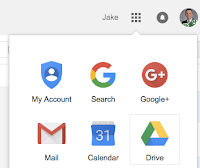
Starting to use Google Drive is a simple as clicking the Drive icon from the Google Apps menu at the top right of any Google App including Gmail.  ITS provides documentation on getting started with Google Drive as well as answers to commonly asked questions about using Drive here:

Assignment:  Click on the Google Apps menu and open Google Drive.  Upload a file.

Sharing

Once you have added files to Google Drive, you can choose to keep the files private (default) or share with colleagues or friends.  Files are accessible anywhere, from any device.  Locate the file that you just uploaded or add another file to explore sharing settings in Drive.

Assignment:  Share a file that you've uploaded to Google Drive.  

Finding Files - Add to My Drive

Finding files is easy with Drive.  Drive uses Google's powerful search technology to find files that best match your search.  Drive also allows you to add files that have been shared with you to your Drive - not by copying the file, but rather giving you direct access to the same file that has been shared with you.  Simply click the "Add to My Drive" icon to make the file available whenever you access Drive without the need to search.

Assignment:  Find a file that has been shared with you and add to "My Drive"


Drive Sync - Backup

Google Drive Sync brings the power of Google Drive right to your computer.  Drive Sync silently synchronizes files from your computer to the Google Cloud - giving you access to your files anywhere and anytime while still allowing you to edit them natively and locally on your computer.  Keeping all of your files in the Google Drive folder of your computer ensures that your files are safe, secure, and backed up to Google's Drive cloud.

Getting a new computer?  No problem, let Drive Sync transfer your files to the new computer without the need to manage cumbersome backups and file transfers.  It all happens behind the scenes while you work on more important things.

Assignment:  Install and configure Google Drive Sync
https://tools.google.com/dlpage/drive


Wednesday, May 18, 2016

ITS to launch 14-week Summer Collaboration Challenge #14weekchallenge #howispentmysummervacation

Starting Monday May 23rd, ITS will be releasing a series of weekly tips aimed at improving communication and collaboration within the Manhattan College Community.  A new tip will be available each week for the 14-weeks between commencement and the start of the 2016-2017 academic year. Whether you are on campus or at home - student or employee - anyone can participate!  

The 14-week Summer Collaboration Challenge will include tips and tricks ranging from basic to advanced topics such as email, Google Apps, ways to communicate to large audiences, better manage time and activities via online calendars, and many more. Participants will have the opportunity to complete each phase of the 14-week challenge at their own pace - all at once, or as topics are released. Track your progress by completing a short questionnaire at the end of each challenge and earn the 14-week Collaboration Challenge badge at the end of the program!