As the College has transitioned to online learning, we have been made aware of several frequently requested features for Google Hangouts Meet. As ITS only supports Google Hangouts Meet we have done some research to find solutions for these feature requests. Below please find the resolutions and follow this link for more detailed information regarding these resolutions.
Showing posts with label Jamboard. Show all posts
Showing posts with label Jamboard. Show all posts
Tuesday, March 31, 2020
Google Hangouts Feature Requests and Solutions
As the College has transitioned to online learning, we have been made aware of several frequently requested features for Google Hangouts Meet. As ITS only supports Google Hangouts Meet we have done some research to find solutions for these feature requests. Below please find the resolutions and follow this link for more detailed information regarding these resolutions.

Tuesday, January 21, 2020
Your Feedback Is Needed!
As another semester beings, we need your help! We are evaluating how certain services and products benefit the Manhattan College community or could bring value to a particular classroom/computer lab. Please help us by completing the following surveys. Each one will only take 5 minutes or less and your feedback is valued.
Web Print (powered by PaperCut) is a web-based printing service that allows quick printing on campus from your own laptop to any public computer lab printer without the need to install any software. ITS has taken the initiative to implement Web Print in the following computer labs:
DLS - 309, 314
LEO - 102
OMAL - 1FL, 206, 410, 506, Kiosk
RLC - 102, 103, 104, 105, 107, 208
Google Jamboard is a digital whiteboard that can be used by students, professors and staff. It has a range of features from digital whiteboard to remote collaboration to video conferencing and more. ITS introduced them on campus during Summer of 2017 and they are currently located in:
O'Malley - 401
Leo Student Study Space- (4 Jamboards available for use)
Leo Center for Academic Success
Smart classrooms are defined as rooms that have the latest technology standard in place.
Customer satisfaction is very important to us. We value your feedback and would like to hear about your overall experience with ITS.
Web Print (powered by PaperCut) is a web-based printing service that allows quick printing on campus from your own laptop to any public computer lab printer without the need to install any software. ITS has taken the initiative to implement Web Print in the following computer labs:
DLS - 309, 314
LEO - 102
OMAL - 1FL, 206, 410, 506, Kiosk
RLC - 102, 103, 104, 105, 107, 208
Please take this 2-3 minute survey to tell us about your experience with Web Print and help us learn more about how we can improve this service.
Google Jamboard is a digital whiteboard that can be used by students, professors and staff. It has a range of features from digital whiteboard to remote collaboration to video conferencing and more. ITS introduced them on campus during Summer of 2017 and they are currently located in:
O'Malley - 401
Leo Student Study Space- (4 Jamboards available for use)
Leo Center for Academic Success
Please take this 4-5 minute survey to tell us about your experience with Google Jamboard and help us learn more about where, when, why and how you are using it.
Smart classrooms are defined as rooms that have the latest technology standard in place.
Please take this 4-5 minute survey to tell us about your experience with classroom technology and help us learn more about where, when, why and how you are using it.
Customer satisfaction is very important to us. We value your feedback and would like to hear about your overall experience with ITS.
Please take this 1-2 minute survey to tell us about your most recent experience with ITS
Thursday, December 5, 2019
Your Feedback is Needed!
As another semester comes to an end we need your help! We are evaluating how certain services and products benefit the Manhattan College community or could bring value to a particular classroom/computer lab. Please help us by completing the following surveys. Each one will only take 5 minutes or less and your feedback is valued.
Web Print (powered by PaperCut) is a web-based printing service that allows quick printing on campus from your own laptop to any public computer lab printer without the need to install any software. ITS has taken the initiative to implement Web Print in the following computer labs:
DLS - 309, 314
LEO - 102
OMAL - 1FL, 206, 410, 506, Kiosk
RLC - 102, 103, 104, 105, 107, 208
Google Jamboard is a digital whiteboard that can be used by students, professors and staff. It has a range of features from digital whiteboard to remote collaboration to video conferencing and more. ITS introduced them on campus during Summer of 2017 and they are currently located in:
O'Malley - 401
Leo Student Study Space- (4 Jamboards available for use)
Leo Center for Academic Success
Smart classrooms are defined as rooms that have the latest technology standard in place.
Customer satisfaction is very important to us. We value your feedback and would like to hear about your overall experience with ITS.
Web Print (powered by PaperCut) is a web-based printing service that allows quick printing on campus from your own laptop to any public computer lab printer without the need to install any software. ITS has taken the initiative to implement Web Print in the following computer labs:
DLS - 309, 314
LEO - 102
OMAL - 1FL, 206, 410, 506, Kiosk
RLC - 102, 103, 104, 105, 107, 208
Please take this 2-3 minute survey to tell us about your experience with Web Print and help us learn more about how we can improve this service.
Google Jamboard is a digital whiteboard that can be used by students, professors and staff. It has a range of features from digital whiteboard to remote collaboration to video conferencing and more. ITS introduced them on campus during Summer of 2017 and they are currently located in:
O'Malley - 401
Leo Student Study Space- (4 Jamboards available for use)
Leo Center for Academic Success
Please take this 4-5 minute survey to tell us about your experience with Google Jamboard and help us learn more about where, when, why and how you are using it.
Smart classrooms are defined as rooms that have the latest technology standard in place.
Please take this 4-5 minute survey to tell us about your experience with classroom technology and help us learn more about where, when, why and how you are using it.
Customer satisfaction is very important to us. We value your feedback and would like to hear about your overall experience with ITS.
Please take this 1-2 minute survey to tell us about your experience with ITS for the Fall 2019 semester.
Sunday, February 24, 2019
ITS to Launch Virtual Technology Showcase
Virtual Technology Showcase at Manhattan College will commence for 12 Weeks
ITS will be releasing a Virtual Technology Showcase on the Manhattan College ITS Blog that will extend over the course of 12 weeks.
The objective of the Showcase is to familiarize the Manhattan College community with the technology found at the college as well as the initiatives started by Manhattan College IT Services. The blog posts will highlight the ways technology can improve your daily experience at the college.
Each topic consists of information and instructions regarding the technology for that week as well as a questionnaire at the end asking for various feedback.
Topics to be covered include:
- Kramer VIA GO Wireless Presentation (aka AirPlayV2)
- Crestron Multihead Connection
- Web Print Wireless Printing
- formMule Google Sheet Addon that allows you to easily send mail merges
- Jamboard a collaborative digital whiteboard
- Lynda.com
- Glance MC App
- G Suite Productivity Apps
- Badging: Digital Badges provide a way to showcase an accomplishment or skill
- LabSeat
- Google Hangouts Meet Hardware
- 25Live the college's room scheduling software
Monday, January 28, 2019
Google Jamboard Feedback Request
Google Jamboard is a digital whiteboard that can be used by students, professors and staff. It has a range of features from digital whiteboard to remote collaboration to video conferencing and more. ITS introduced them on campus during Summer of 2017 and they are currently located in:
O'Malley - 401
Thomas - Center for Academic Success
O'Malley - 401
Thomas - Center for Academic Success
Please take this 4-5 minute survey to tell us about your experience with Google Jamboard and help us learn more about where, when, why and how you are using it.
Monday, October 22, 2018
Jamboard Training O'Malley Library Nov 2 & Nov 7
IT Services is presenting Jamboard Training Sessions on the following dates:
The following topics will be covered:
An ITS student worker will be presenting the training.

- November 2 from 1:00 to 2:00 pm
- November 7 from noon to 1:00 pm
The following topics will be covered:
- Demo a Jamboard and its features
- Overview of the system of ownership and collaborators
- Using the Tool Set
- Pushing a Jam to the Jamboard
- Ending a Jamboard session
An ITS student worker will be presenting the training.

Jamboards are for student use and a Jamboard is located in:
O'Malley Library Study Room 401 & O'Malley Library Study Room 314
Thursday, October 11, 2018
Jamboard Training O'Malley Library Nov 2 & Nov 7
IT Services is presenting Jamboard Training Sessions on the following dates:
The following topics will be covered:
An ITS student worker will be presenting the training.
- November 2 from 1:00 to 2:00 pm
- November 7 from noon to 1:00 pm
The following topics will be covered:
- Demo a Jamboard and its features
- Overview of the system of ownership and collaborators
- Using the Tool Set
- Pushing a Jam to the Jamboard
- Ending a Jamboard session
An ITS student worker will be presenting the training.
Jamboards are for student use and a Jamboard is located in:
O'Malley Library Study Room 401 & O'Malley Library Study Room 314
Monday, October 1, 2018
New Ways to Create, Edit and Share Your Jams with the Latest Jamboard Update
With this month’s release, Google has added two highly requested features from customers that help you jam from anywhere and give you more control when sharing your work: creating and editing jams from the web and a “View Only” mode.
Create and edit your jams in a web browser
While users have always been able to view a jam from any device, editing and collaborating on a jam has been limited to touch devices (like the physical kiosk, tablets, and smartphones).
Now, you can create and edit your jams on the web too. With the new updates to the Jamboard web experience, everybody on your team can join in and collaborate on a session in their web browser. This means that anybody in the meeting can participate, whether they want to edit a sketch from a laptop or quickly type up sticky notes during a brainstorm.

We’ve found that this makes using and adopting Jamboard much easier for most teams and organizations.
Share and protect your work with View Only mode
Sometimes you want to share something to collaborate, but other times you want to share something that’s complete. Perhaps it’s an early brainstorm that you just want your manager to be able to view, or perhaps you’re a teacher sharing an assignment that you don’t want students to edit or change. With View Only mode, you can share something broadly but set exactly who has edit access.

The feature looks and works similarly to other G Suite apps like Docs, Sheets and Slides, so you have a consistent experience no matter what you’re creating and sharing.

For a full list of new features and improvements from this month’s release, check out the What’s New in Jamboard page in the Help Center.
Create and edit your jams in a web browser
While users have always been able to view a jam from any device, editing and collaborating on a jam has been limited to touch devices (like the physical kiosk, tablets, and smartphones).
Now, you can create and edit your jams on the web too. With the new updates to the Jamboard web experience, everybody on your team can join in and collaborate on a session in their web browser. This means that anybody in the meeting can participate, whether they want to edit a sketch from a laptop or quickly type up sticky notes during a brainstorm.

We’ve found that this makes using and adopting Jamboard much easier for most teams and organizations.
Share and protect your work with View Only mode
Sometimes you want to share something to collaborate, but other times you want to share something that’s complete. Perhaps it’s an early brainstorm that you just want your manager to be able to view, or perhaps you’re a teacher sharing an assignment that you don’t want students to edit or change. With View Only mode, you can share something broadly but set exactly who has edit access.

The feature looks and works similarly to other G Suite apps like Docs, Sheets and Slides, so you have a consistent experience no matter what you’re creating and sharing.

For a full list of new features and improvements from this month’s release, check out the What’s New in Jamboard page in the Help Center.
Monday, June 11, 2018
ITS and Library Team Up to Present Manhattan College’s Jamboard Experiment June 12, 2018 Norwood, MA
Anita McCathy, Training Coordinator, Manhattan College
Richard Musal, Director of Client Services, Manhattan College
Laurin Paradise, Reference & Instruction Librarian, Manhattan College
Laurin Paradise, Reference & Instruction Librarian, Manhattan College
Are teaming up with Google to present Manhattan College’s Jamboard Experiment tomorrow at a Nercomp event in Norwood, MA.
Friday, April 13, 2018
Jamboard Training for Students in O'Malley Library: April 18
ITS is presenting a Jamboard Training Session on the following date during Community Period:
The following topics will be covered:
- Wednesday, April 18th from noon to 1:00 pm
The following topics will be covered:
- Explain what a Jamboard is and its features
- Overview of the system of ownership and collaborators
- Using the Tool Set
- Pushing a Jam to the Jamboard
- Ending a Jamboard session
Wednesday, April 4, 2018
Jamboard Training for Students in O'Malley Library
ITS is presenting a Jamboard Training Session on the following dates during Community Period:
The following topics will be covered:
An ITS student worker will be presenting the training.
- Wednesday, April 11th from noon to 1:00 pm
- Wednesday, April 18th from noon to 1:00 pm
The following topics will be covered:
- Explain what a Jamboard is and its features
- Overview of the system of ownership and collaborators
- Using the Tool Set
- Pushing a Jam to the Jamboard
- Ending a Jamboard session
An ITS student worker will be presenting the training.
Wednesday, November 15, 2017
Jamboard Update: Create and Edit Objects in Jams on Your Mobile Phone
Building off of the recent improvements to the Jamboard app for your mobile phone, the latest Jamboard release allows you to do even more on the go with your phone. We’re also making it easier to move content between frames on your Jamboard device.
Create and edit objects in jams on your mobile phone
Creating and collaborating on jams just got even easier. You can now use the Jamboard app on your Android and iOS phones to:
In addition, for quicker editing within jams, you can now move objects to other frames easily via the frame bar at the top of your Jamboard device screen.
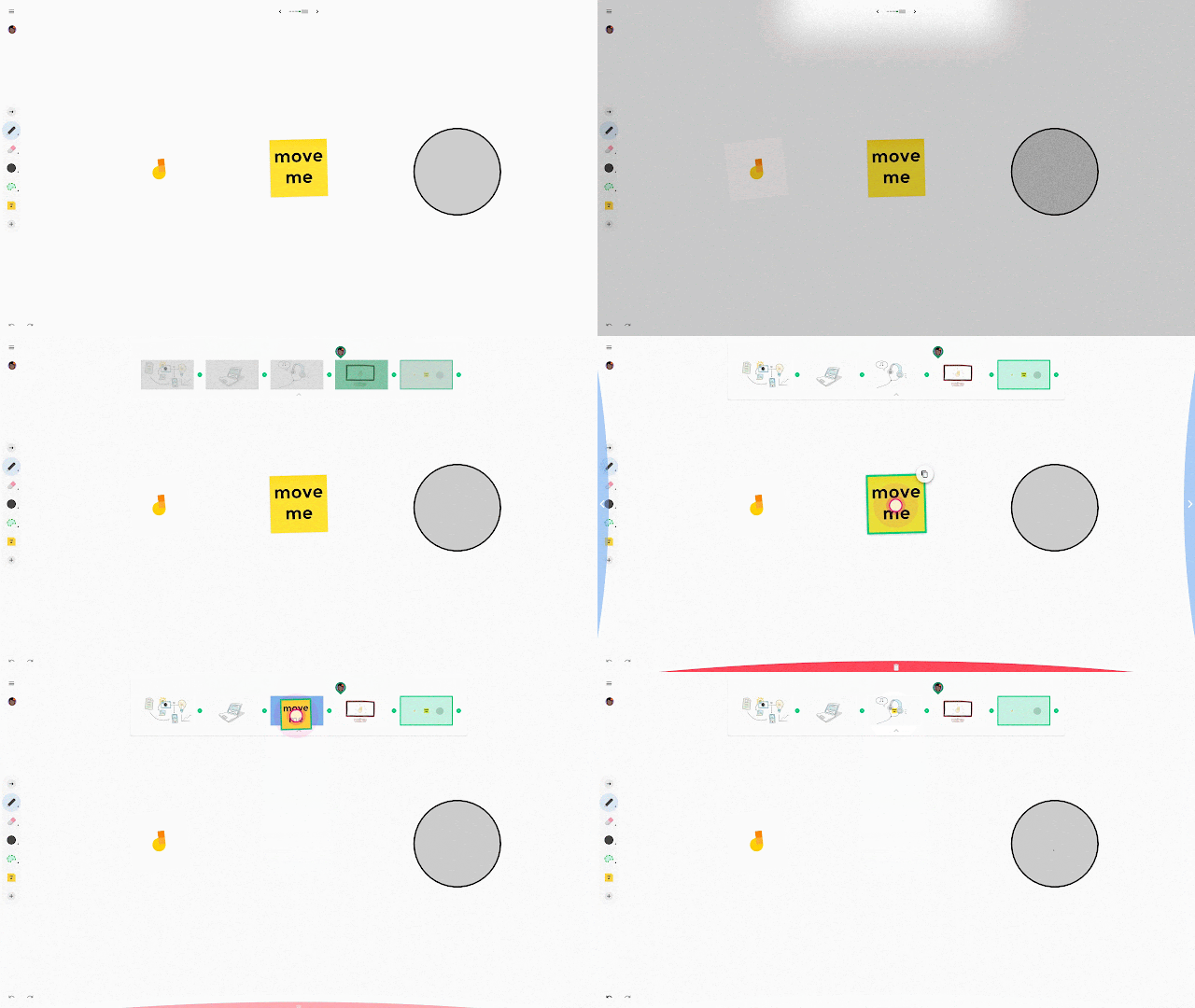
For a full list of new features and improvements from this month’s release, check out the What’s New in Jamboard page in the Help Center.
Create and edit objects in jams on your mobile phone
Creating and collaborating on jams just got even easier. You can now use the Jamboard app on your Android and iOS phones to:
- Create jams
- Move/scale/rotate objects
- Move objects to adjacent frames
- Delete and duplicate objects
- Undo/redo changes
- Edit sticky notes
- Zoom in and out, and pan
- And more...
In addition, for quicker editing within jams, you can now move objects to other frames easily via the frame bar at the top of your Jamboard device screen.
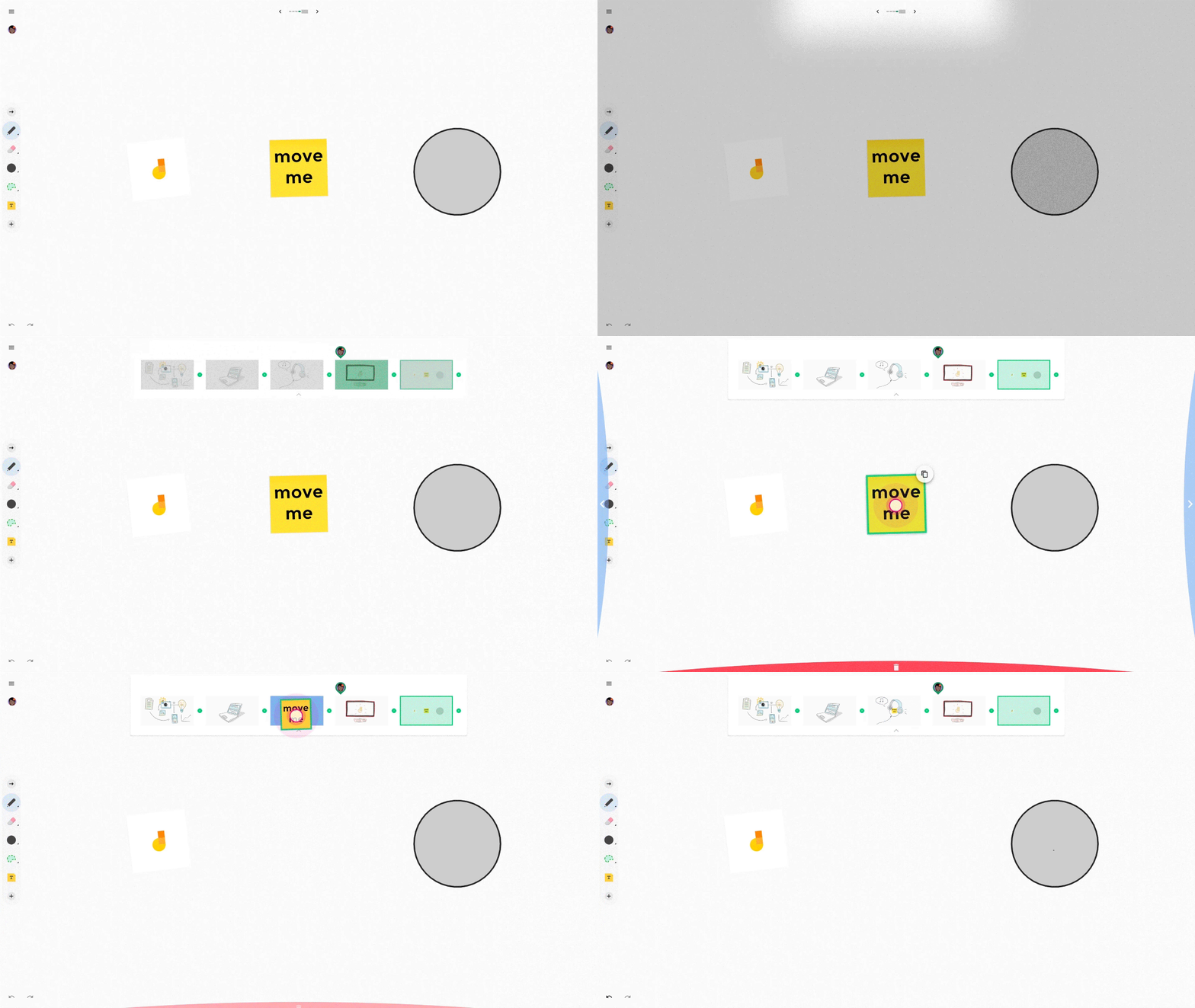
For a full list of new features and improvements from this month’s release, check out the What’s New in Jamboard page in the Help Center.
Monday, August 28, 2017
Welcome Back!
We would like to welcome everyone back to campus and trust everyone had a relaxing and restorative summer break.
ITS Summer Updates
Client Services and Operations had a busy and very productive summer and would like to share some of our updates and accomplishments as we strive to be a strategic partner and provide exceptional customer service to the entire Manhattan College Community:
Upgraded PCs in:
De La Salle 210, RLC 103 and 105
Significant upgrades include
- Small Form Factor PC with mount placing PC behind monitor (RLC 103 and 105 only)
- Solid State Hard Drive for improved performance.
Classroom Renovations include the following joint efforts with Facilities Project Management team.
- Started installing Laser Projectors in renovated classrooms
- Faculty and students will appreciate the instant on and off feature and the brighter light displayed from these update models.
Renovated Classrooms:
De La Salle 210
- Expanded to 34 desktops,
- New teacher's Ergotron station,
- New Laser Projector
- A new monitor added at front of room and 2 monitors in the back of the room
De La Salle 209, Advanced Learning Center
- 6 TV presentation stations
- New furniture designed to promote a collaborative learning environment.
Standard renovation including new laser projectors:
- De La Salle 214 & 216
- Alumni 200 & 201
Testing two rooms with limited technology upgrades only:
- Renovation adding podium, PC and control unit
- De La Salle 314 and Leo Hall 324
Replaced aging Library Kiosk PCs and deployed new kiosk image.
- O’Malley 401
- O’Malley 314 (Jamboard will be moved to 314 within the first 2 weeks of school)
Support:
- Camino program by preparing a Chromebook cart containing 20 Chromebooks.
- Chemical Engineering Department by setting up a mini computer lab
Software Updates:
New computer lab image faster than ever before.
Replaced aging PCs in smart classrooms across campus and deployed new classroom PC image.
We have deployed software to track usage of software in our classrooms and computer labs. We will use this data to optimize our licensing budget. The next phase of this is to publish real time usage statistics of computer lab computers so that you can know where a free computer is at any given time. The software we are using is called Labstats.
ITS Service Report link takes you to a series of links to reports generated by our ticketing and project management system. It includes data with regard to our service delivery statistics but also contains information with regard to rooms that are currently facing technology issues.
Not sure if a classroom issue has been resolved? Click here for an up to date Room Issues report: Complete with details on current status of each room that has an issue.
Banner (Forms) received a facelift this summer!
- Banner Forms no longer requires JAVA, which means that more browsers, such as Google Chrome are now supported!
- ITS rolled out an Enterprise Reporting Environment called Argos. ITS has been actively working with the user community to empower them through the use of Argos for report development and thereby giving them the ability to get to their data more quickly.
Networking Updates
- Installed wireless throughout Alumni Hall to include classrooms 200 and 201, Student Health Services, and offices located on the second floor.
- Upgraded networking equipment in Draddy Gymnasium and Alumni Hall to increase the network speed between the two buildings.
Glance MC Updates
- Student Developers working for Web and Collaboration via Summer Internships and Work-Study / Campus Employment continue to update Manhattan College's Glance MC mobile app with new features and to take advantage of continuously evolving technologies.
- Students and employees are encouraged to download the native app - or updates when available - from either the iTunes App Store or on Google Play. A key element of the app is the bundled Digital Jasper Card, an enhancement to one's plastic card and part of the college's Jasper Pay initiative. This convenient option is accepted at college dining venues and can also be used for access to certain locations on campus which currently use the plastic card. You'll find other features of each app useful on-the-go, as well.
- The Glance MC app is available in the iTunes App Store and on Google Play - simply search for “Glance MC”. For more information on this student-developed app, see the ITS Glance MC Mobile App page.
ITS STARS Update:
A Student Technology And Resource Specialist (STARS) is a Manhattan College student who exemplifies Lasallian values by utilizing their unique skill set to assist members of the Manhattan College community. A STAR has a combination of excellent interpersonal communication skills and technology knowledge. STARS show compassion when working with members of the community who are having technical difficulties. STARS will be going through ongoing training this Fall and upgrading their technical skills in order to offer even stronger support to the Manhattan College community. Managers are organizing training and a student management hierarchy with the goal of a 90% student run Client Services department in the upcoming Fall 2017 semester.
Reminders
Have a question? Check out our Knowledge Base first.
The best way to get in touch with a Client Services representative is an email to its@manhattan.edu or a phone call to x7973 (718-862-7973). Note that email and voicemail for this line go to our ticketing system so we encourage you to leave a message
Please follow these instructions to update your personal email address: https://manhattan.teamdynamix.
Remember that we will never ask you for your password. We encourage you all to please reset your computer and provide the temporary password to ITS prior to dropping it off at Client Services. If you do not do this prior, please allocate an extra 5 minutes to work with a Client Services representative so that they can assist you in changing your password when working with us. Upon completion of work on your computer, please allocate another 5 minutes so that a Client Services representative can assist you in changing your password back to its original state. This is necessary in order to safeguard your password. Remember that you should never give your password out to anyone under any circumstances. Note that the same procedure holds true when you are requesting assistance with one of your Manhattan College accounts. For more details about best practices for keeping your information secure at Manhattan College click this Cyber Safety link found on the ITS website.
Reminders
Have a question? Check out our Knowledge Base first.
The best way to get in touch with a Client Services representative is an email to its@manhattan.edu or a phone call to x7973 (718-862-7973). Note that email and voicemail for this line go to our ticketing system so we encourage you to leave a message
Please follow these instructions to update your personal email address: https://manhattan.teamdynamix.
Remember that we will never ask you for your password. We encourage you all to please reset your computer and provide the temporary password to ITS prior to dropping it off at Client Services. If you do not do this prior, please allocate an extra 5 minutes to work with a Client Services representative so that they can assist you in changing your password when working with us. Upon completion of work on your computer, please allocate another 5 minutes so that a Client Services representative can assist you in changing your password back to its original state. This is necessary in order to safeguard your password. Remember that you should never give your password out to anyone under any circumstances. Note that the same procedure holds true when you are requesting assistance with one of your Manhattan College accounts. For more details about best practices for keeping your information secure at Manhattan College click this Cyber Safety link found on the ITS website.
Client Services can NOT lend out equipment to students. If a student needs equipment for a project, they must have a Manhattan College employee sign out equipment on their behalf. Note that the Manhattan College employee is responsible for that equipment.
Client Services can provide short-term loaner equipment such as laptops and projectors by reservation. Note that if equipment is needed long term, it should be purchased via your department.
In lieu of loaning certain cables and remotes, Client Services has installed commonly used VGA and Audio cables as well as projector remotes in all yet-to-be-renovated classrooms. Network cables will be provided to faculty upon request. Faculty requiring other specialty cables or adapters (such as Apple VGA adapters) should contact Client Services for assistance purchasing this equipment as they are not stocked or provided by Client Services.
The Client Services office does not work on personal computers. We will train employees and students and instruct them on how to fix their computers, but personal computers cannot be dropped off for service. No personal items should ever be left in any of the Client Services offices.
Please remember to plan event setups in advance. We work with limited resources so we cannot always complete last minute requests.
Client Services currently has 3 convenient locations: Jasper Basement, LIB 502/504, & RLC 103. Please stop by the location closest to you. We encourage you to call first to be sure that someone is available as we are constantly assisting the Manhattan College community.
Campus-owned computers are purchased with hardware support provided by the manufacturer. ITS will diagnose and determine whether manufacturer hardware support is needed. For the fastest service, users are also able to contact the manufacturer directly to access hardware support and replacement.
Your feedback helps us improve our service and should be sent to https://docs.google.com/a/manhattan.edu/forms/d/e/1FAIpQLSeIph5pps5YgLJUC6NAN0PX7K3zCrPUh7cCcxYP1Q6cRm8xrA/viewform
Check out our Blog: http://itsblog.manhattan.edu/
Check out our known issues page: http://itsblog.manhattan.edu/p/known-issues.html
Thank you for your attention.
Subscribe to:
Posts (Atom)