Update 2:52PM Thursday November 29, 2017:
Apple has released an update that fixes this vulnerability. Please update your Mac ASAP.
Here is the information regarding the update.
A security hole was recently discovered in the latest version of Mac OS X High Sierra which allows for anyone to access your computer without a password. We have provided a link to a USA Today article below, but there are many articles on the web reporting this issue. While Apple is working on a fix via update, you should take immediate action to fix the issue by following the instructions here. Basically, all you need to do is set a Root User password so please navigate to those instructions in the aforementioned link. If you need further assistance, please contact its@manhattan.edu.
USA Today Article
Wednesday, November 29, 2017
Tuesday, November 28, 2017
Reminder: Transition to Google Drive File Stream
Google Drive Sync ends support on December 11, 2017.
Solution:
Install Google Drive Stream. At the conclusion of the installation, you will get a pop up asking whether you want to replace Google Drive Sync with Drive Stream or whether you want to use both. It is recommended that you select "Yes" indicating that you wish to replace.

What about the current Drive application? Before installing File Stream, Google recommends removing the current Drive folder. For ease of use, we think it's best to uninstall the current Drive client.
Uninstall Drive and install File Stream
1. Uninstall the previous Google Drive app or Backup and Sync if it is present on your computer. To uninstall, navigate to the Windows icon in the bottom left corner of the screen and search for "Control Panel" and proceed to open it. You should be greeted with this window:
 Once you click on "Program and Features", you will be shown a list of programs that are installed on your computer. Navigate to the Google Drive app that you previously installed on your PC and select it. You will then see appear the option to uninstall that program. Proceed with the uninstall to completely remove the program from your PC.
2. Delete Google Drive Sync folder from your computer. It is a local folder only now and no longer syncs.
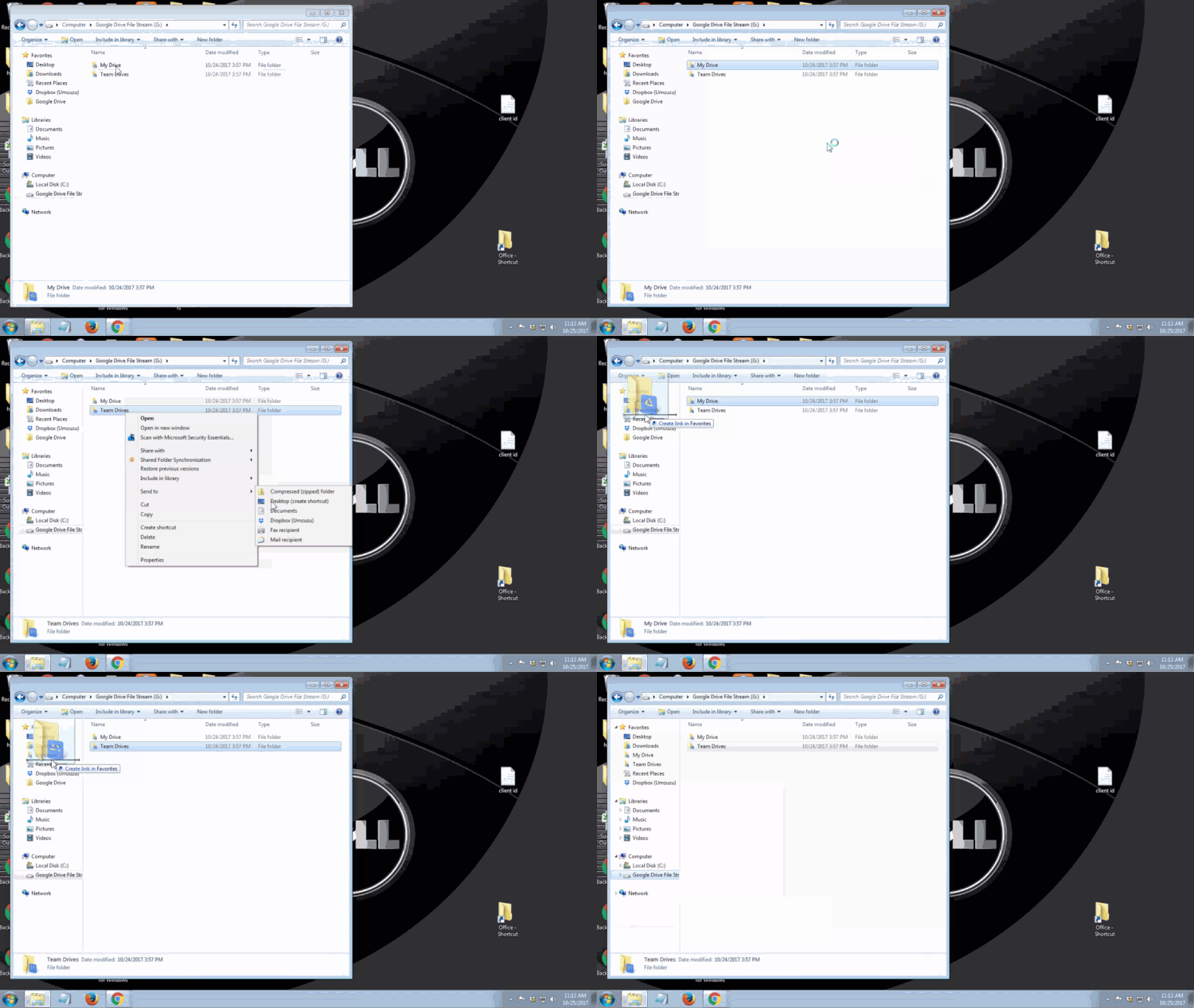
3. Install Drive File Stream. You can find it here. Depending on preferences of the User, it can be a good idea to create shortcuts on the desktop and in the Favorites or Quick Access areas of Windows and MacOS. We also recommend removing any shortcuts to the previous Google Drive folder to avoid confusion.
Also, the Drive File Stream icon in the Windows task bar will be grey, that should be the only Google Drive icon found in the task bar. If you see the older Google Drive Sync colored icon still on your computer go back to step 2 and delete old Google Drive Sync folder.
About:
Drive File Stream is a new way to access all of your Google Drive files directly from your Mac or PC, without using up all your disk space. Unlike traditional file sync tools, Drive File Stream doesn’t require you to download your files first in order to access them from your computer. Instead, when you need to view or edit a file, it automatically streams from the cloud, on-demand. With Drive File Stream, your team will spend less time waiting for files to sync, no time worrying about disk space, and more time being productive.
With Drive File Stream, you can:
- Quickly see all your Google Drive files in Finder/Explorer (including Team Drives).
- Browse and organize Google Drive files without downloading all of them to your computer.
- Choose which files or folders you'd like to make available offline.
- Open files in common apps like Microsoft Office and Adobe Photoshop.
Environment
Windows
MacOSX
Google Drive
How do I get started?
Visit the Drive Help Center to install Drive File Stream and get started.

Manhattan College ITS receives Cloud Leadership Award
 The Manhattan College ITS (Information Technology Services) Office has been recognized for its leadership in deploying Hybrid IaaS/PaaS (Infrastructure/Platform as a Service) Cloud solutions by E&I Cooperative Services (E&I) in their inaugural Cloud Leadership Awards ceremony.
 Winners were awarded during the EDUCAUSE 2017 Annual Conference reception held on November 2, 2017 in Philadelphia, P.A. The Cloud Leadership Awards honor the achievements of higher education institutions that have benefited students, teachers, administrators, and staff by using cloud solutions.
Monday, November 27, 2017
COMPLETE - Horan Hall - Brief Network Outage 11/29 at 10am
UPDATE: As of about 10:45am yesterday, the generator test was completed. If you have any questions, please contact ITS at its@manhattan.edu or x-7973.
Physical Plant will be conducting a generator test in Horan Hall Wednesday, November 29th at approximately 10am.
There will be two brief outages, one while switching to generator power, the other while switching back to main power.
This will not affect the rest of campus.
Physical Plant will be conducting a generator test in Horan Hall Wednesday, November 29th at approximately 10am.
There will be two brief outages, one while switching to generator power, the other while switching back to main power.
This will not affect the rest of campus.
LabSeat: Find an Open Computer on Campus
Have you ever encountered a situation when you needed to use a lab computer, but you arrived and all of the computers were already in use? Looking for a quiet corner to study?
Direct Link:
https://go.manhattan.edu/labseat
Via the ITS website: https://inside.manhattan.edu/offices/its/computer-labs.php

Well, thanks to a new web application called LabSeat that was installed on our lab computers earlier this year, you can check computer availability in real time before you leave for the lab. This will be especially useful during busier times such as midterms and finals week as you can choose where to study by how many computers are available.


Access the LabSeat application to view computer availability via any of the methods below:
https://go.manhattan.edu/labseat
- Take a look at the list of labs and click on the lab you would like to view
Via the college's Quicklinks on the insidemanhattan.edu website or the Glance MC App, using any of the following search terms: computer, lab,LabSeat, etc. (Note Glance MC IOS users can save the link to their app Favorites)
Via the ITS website: https://inside.manhattan.edu/offices/its/computer-labs.php
Click on the arrow at the end of the room and you will see:
- A map of the Computer Lab
- Hours computer lab is open
- Classes scheduled in each classroom/open lab
For more information click on KBA titled: LabSeat: Find an Open Computer on Campus
COMPLETE - Licensing Issue: Aspentech HYSYS is Down
Update:
Licensing issue has been fixed as of 2:45 PM. Aspentech products should be fully functional.
Original Post:
ITS is aware of a licensing issue currently preventing AspenTech HYSYS from functioning.

The license expired this past Friday at midnight. We have been working with their support team since then to resolve the problem. They appear to have been closed for most of the holiday weekend.
We will update this post as soon as we have any more information.
Licensing issue has been fixed as of 2:45 PM. Aspentech products should be fully functional.
Original Post:
ITS is aware of a licensing issue currently preventing AspenTech HYSYS from functioning.

The license expired this past Friday at midnight. We have been working with their support team since then to resolve the problem. They appear to have been closed for most of the holiday weekend.
We will update this post as soon as we have any more information.
Monday, November 20, 2017
New Dorm Wifi Feedback Form!
ITS is making strides to improve the wireless networks in the dorms across campus. We have made it easier to put in wifi complaints with a new Dorm Wireless Feedback Form!
There are several ways you can access the form to make your wifi complaints:


There are several ways you can access the form to make your wifi complaints:
- You can visit the following link to access the form: https://go.manhattan.edu/dormwifi

- Access the form from the GlanceMC app, found under the Featured Links section


Subscribe to:
Posts (Atom)