Gregory Quaglieni and Richard Musal will be presenting at March 27th in Providence Rhode Island at the Nercomp Regional Conference & May 10th in Miami Florida for the TeamDynamix Client Summit. Both presentations will be regarding how we got our Service Desk to be 90% Student Run.
Nercomp Prentation
TeamDynamix Presentation
Wednesday, December 20, 2017
Friday, December 15, 2017
COMPLETE: Planned Network Wireless Maintenance - Jan 11 at 7am
UPDATE2: As of 9:00am this morning, the planned network wireless maintenance was completed successfully. If you have any questions, please contact ITS via email at its@manhattan.edu or at extension x-7973.
UPDATE: Due to the campus closure and delayed opening on January 4th-5th, ITS was unable to do testing before we could conduct this wireless network migration on January 8th. This network migration will be rescheduled for this Thursday, January 11th from 7am-9am.
ITS will be conducting network maintenance on the wireless network in RLC, Leo, Memorial, Miguel, and DLS Halls. This scheduled maintenance will be conducted on January 8, 2018 from 7am to 9am.
In order to improve the wireless network reliability in these locations, there will be scheduled network maintenance in order to migrate the wireless networks. This scheduled network maintenance will affect only the wireless network in RLC, Leo, Memorial, Miguel, and DLS Halls. The wired networks in all buildings and the wireless networks on the rest of campus will not be affected.
We apologize for the inconvenience that this may cause. If you have any questions, please contact ITS at extension x-7973 or via email at its@manhattan.edu.
UPDATE: Due to the campus closure and delayed opening on January 4th-5th, ITS was unable to do testing before we could conduct this wireless network migration on January 8th. This network migration will be rescheduled for this Thursday, January 11th from 7am-9am.
ITS will be conducting network maintenance on the wireless network in RLC, Leo, Memorial, Miguel, and DLS Halls. This scheduled maintenance will be conducted on January 8, 2018 from 7am to 9am.
In order to improve the wireless network reliability in these locations, there will be scheduled network maintenance in order to migrate the wireless networks. This scheduled network maintenance will affect only the wireless network in RLC, Leo, Memorial, Miguel, and DLS Halls. The wired networks in all buildings and the wireless networks on the rest of campus will not be affected.
We apologize for the inconvenience that this may cause. If you have any questions, please contact ITS at extension x-7973 or via email at its@manhattan.edu.

COMPLETED: Dorm Wired Network Maintenance
UPDATE4: Overlook Manor was completed as of 11:30am today, Jan 8th. This wired maintentance is now complete. If you have any questions, please feel free to contact ITS at x-7973 or its@manhattan.edu
UPDATE3: Jasper Hall has been successfully completed as of 11:30am today.
UPDATE2: Chrysostom and Lee Halls have been successfully completed as of 12:30pm today.
UPDATE: Horan Hall was completed this morning. Lee Hall and Chrysostom will be completed tomorrow, December 20th.
ITS will be conducting network maintenance on the dorm wired networks throughout campus. This scheduled maintenance will be conducted from December 19th to January 5th, according to the schedule below, and will cause some localized wired network outages on a roaming basis in the dorms only. This will not affect other parts of the campus, nor will it affect Jaspernet wireless throughout the dorms.
In order to improve the dorm wired network reliability, there will be scheduled network maintenance in order to migrate the dorm wired networks. This network maintenance will affect the wired networks in all of the dorm buildings across campus. The dorm wired network maintenance schedule will be as follows:
We apologize for this inconvenience. If you have any questions, please feel free to contact ITS at x-7973 or its@manhattan.edu
UPDATE3: Jasper Hall has been successfully completed as of 11:30am today.
UPDATE2: Chrysostom and Lee Halls have been successfully completed as of 12:30pm today.
UPDATE: Horan Hall was completed this morning. Lee Hall and Chrysostom will be completed tomorrow, December 20th.
ITS will be conducting network maintenance on the dorm wired networks throughout campus. This scheduled maintenance will be conducted from December 19th to January 5th, according to the schedule below, and will cause some localized wired network outages on a roaming basis in the dorms only. This will not affect other parts of the campus, nor will it affect Jaspernet wireless throughout the dorms.
In order to improve the dorm wired network reliability, there will be scheduled network maintenance in order to migrate the dorm wired networks. This network maintenance will affect the wired networks in all of the dorm buildings across campus. The dorm wired network maintenance schedule will be as follows:
- Horan Hall and Lee Hall - Tuesday, December 19th
- Horan Hall will be first, followed by Lee Hall
- Chrysostom - Wednesday, December 20th
- Jasper Hall - Wednesday, January 3, 2018
- Overlook Manor - Thursday, January 4, 2018
We apologize for this inconvenience. If you have any questions, please feel free to contact ITS at x-7973 or its@manhattan.edu
Thursday, December 14, 2017
Operations Team Meets New Milestone
The Operations Team has reduced the average number of days to close tickets by one day. See details here.
Wednesday, December 13, 2017
COMPLETE: Horan Hall - Brief Network Outage 12/18 at 10am
UPDATE: As of 10:40 this morning, the generator test in Horan Hall has been successfully completed.
Physical Plant will be conducting a generator test in Horan Hall Monday, December 18th at approximately 10am.
There will be two brief outages, one while switching to generator power, the other while switching back to main power.
This will not affect the rest of campus.
Physical Plant will be conducting a generator test in Horan Hall Monday, December 18th at approximately 10am.
There will be two brief outages, one while switching to generator power, the other while switching back to main power.
This will not affect the rest of campus.
Monday, December 11, 2017
Reminder: Transition to Google Drive File Stream
Google Drive Sync ends support on December 11, 2017.
Drive File Stream is a new way to access all of your Google Drive files directly from your Mac or PC, without using up all your disk space. Unlike traditional file sync tools, Drive File Stream doesn’t require you to download your files first in order to access them from your computer. Instead, when you need to view or edit a file, it automatically streams from the cloud, on-demand. With Drive File Stream, your team will spend less time waiting for files to sync, no time worrying about disk space, and more time being productive.
With Drive File Stream, you can:
- Quickly see all your Google Drive files in Finder/Explorer (including Team Drives).
- Browse and organize Google Drive files without downloading all of them to your computer.
- Choose which files or folders you'd like to make available offline.
- Open files in common apps like Microsoft Office and Adobe Photoshop.
Note: This is only relevant for those that use a sync app such as Google Drive Sync. If you only use the web app (https://drive.google.com/) no action is required.
Environment
Windows
MacOSX
Google Drive
How do I get started?
Visit the Drive Help Center to install Drive File Stream and get started.
Solution:
Install Google Drive Stream. At the conclusion of the installation, you will get a pop up asking whether you want to replace Google Drive Sync with Drive Stream or whether you want to use both. It is recommended that you select "Yes" indicating that you wish to replace.

What about the current Drive application? Before installing File Stream, Google recommends removing the current Drive folder. For ease of use, we think it's best to uninstall the current Drive client.
Uninstall Drive and install File Stream
1. Uninstall the previous Google Drive app or Backup and Sync if it is present on your computer. To uninstall, navigate to the Windows icon in the bottom left corner of the screen and search for "Control Panel" and proceed to open it. You should be greeted with this window:
 Once you click on "Program and Features," you will be shown a list of programs that are installed on your computer. Navigate to the Google Drive app that you previously installed on your PC and select it. You will then see appear the option to uninstall that program. Proceed with the uninstall to completely remove the program from your PC.
2. Delete Google Drive Sync folder from your computer. It is a local folder only now and no longer syncs.
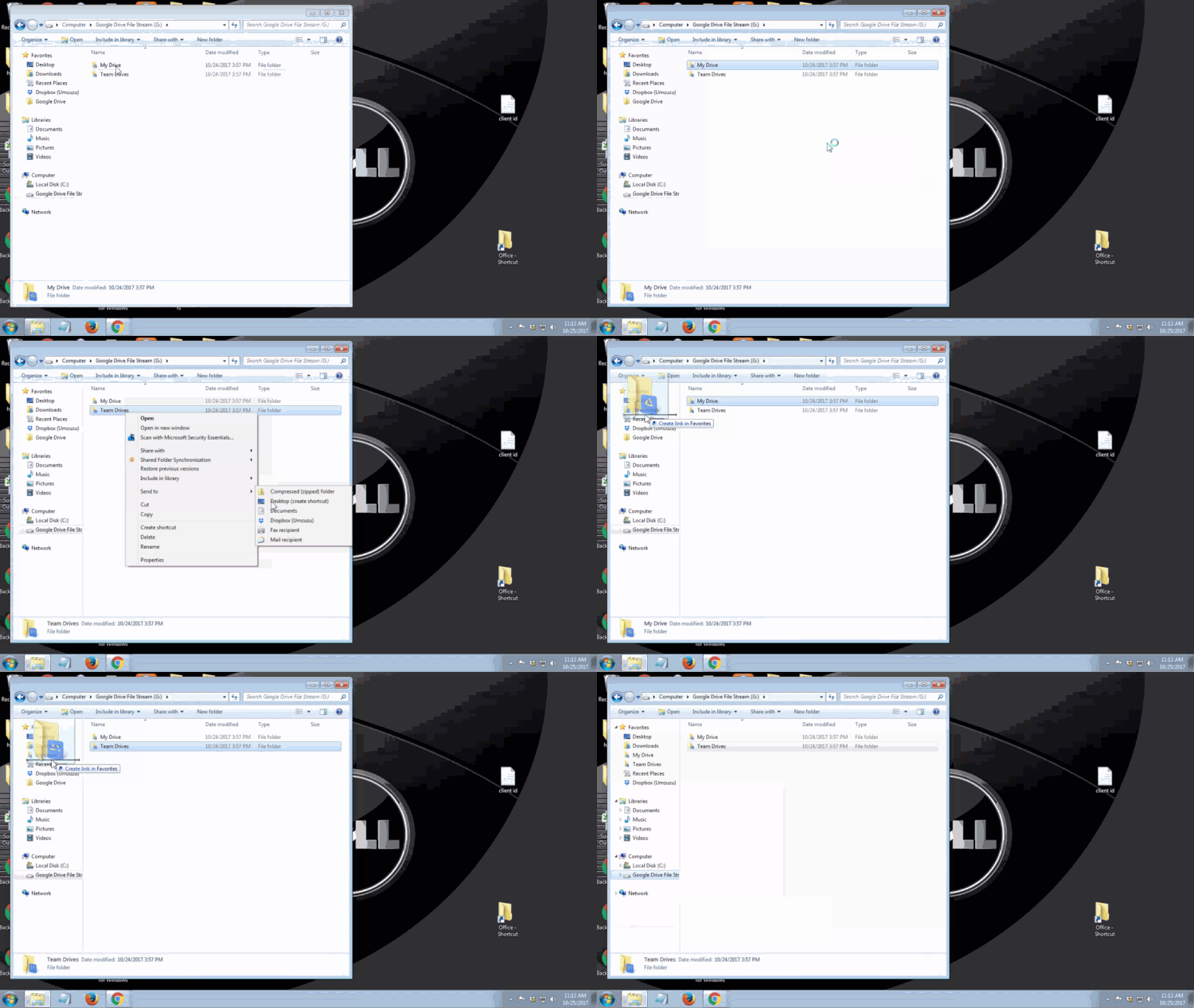
3. Install Drive File Stream. You can find it here. Depending on preferences of the User, it can be a good idea to create shortcuts on the desktop and in the Favorites or Quick Access areas of Windows and MacOS. We also recommend removing any shortcuts to the previous Google Drive folder to avoid confusion.
Also, the Drive File Stream icon in the Windows task bar will be grey, that should be the only Google Drive icon found in the task bar. If you see the older Google Drive Sync colored icon still on your computer go back to step 2 and delete old Google Drive Sync folder.
Friday, December 8, 2017
Classroom Technology Survey
Please take a few minutes to provide feedback on the latest generation Renovated Classroom. We will use this feedback when planning for future renovations.
Click here for the survey.
Click here for the survey.
Subscribe to:
Posts (Atom)