Sunday, June 30, 2019

Google Collaboration Challenge Week 5


Using Google Calendar
Gif depicting an animation of the number of days in a monthWith Google Calendar, you can quickly schedule meetings and events, and get reminders about upcoming activities, so you always know what’s next. This week we'll show you how to setup your Google Calendar to keep track of classes, meetings, and events as well as configure Calendar to let others know when you are available.


Getting started with Google Calendar

Let's start by getting familiar with Google Calendar. In this tutorial, we'll explore Calendar basics including creating meetings, reminders, and invitations as well as customizing the look and function of Calendar.


Configure Calendar

First, we'll need to make sure the Calendar is configured to securely share your Free/Busy information while keeping your event details private.


1 - Access Calendar by clicking the Google Apps menu and selecting "Calendar. The Google Apps menu can be accessed from any Google app including Gmail.

2 - In calendar, select the "gear" icon at the top right of the page and select "Settings".

3 - In the Calendar Settings screen select "Calendars" from the top menu, then click the link for the first calendar in the list. The first calendar should be your name.

4 - In the details screen, click "Share this Calendar" from the top menu. Recommended settings are below. Be sure to check the appropriate boxes and select "See only free/busy" from both drop-downs.

Image depicting how calendars can be shared within Google Calendar

 Your calendar has now been configured to the recommended settings to share your availability with others while keeping your event details private.


Creating Appointment Slots with Google Calendar

You can set up appointments on your calendar that people can reserve. For instance, professors can have their students reserve time during office hours each week. For instructions on how to create events and invite people, please click the link to the tutorial below and complete the tutorial below.

Get familiar with Google Calendar

Assignment: Complete the "Get Started with Calendar" tutorial to create and manage your first personal event, invite others, and set reminders.

Once you complete reviewing the materials from the fifth week of the Google Collaboration Challenge take a few minutes to answer these questions: Week 5 Google Drive Questionnaire

Wednesday, June 26, 2019

COMPLETE: Moodle Scheduled Maintenance Tuesday 7/2/19 7AM-9AM

COMPLETE: As of 7:28AM, the Moodle scheduled maintenance has been completed.  Moodle is now AVAILABLE.

The Manhattan College Moodle system will be OFFLINE for system maintenance starting at 7AM on Tuesday 7/2/19 to apply system updates. We anticipate that the maintenance will be completed between 7AM - 9AM during which time the Moodle system will be UNAVAILABLE.

Monday, June 24, 2019

Google Replacing MS Office Drive Plug-in for MS Office with Drive File Stream in June

Drive File Stream is G Suite's enterprise-focused app for accessing Drive files on demand via Mac or PC.  Google is now updating it with features from the Drive plug-in for MS Office, which is being shut down in June.

Launched in 2017, Drive File Stream allows users to access Shared Drives and other documents stored in the cloud on demand. This Mac or PC app for G Suite customers will now incorporate the Google Plug-in for MS Office that allows Windows users to edit, email and share Office files stored in Drive.
The key advantage of this integration includes the ability to open Drive files through the regular system menu for a more native experience. For example, files can be saved to Drive by using
File>Save and selecting Drive File Stream. This also works to open Drive documents from the File>Open menu.


Drive for Office plug in users will be prompted to uninstall the Windows app and then download Drive File Stream.
If you need support in switching to Drive File Stream, please reach out to ITS:

email:  its@manhattan.edu or call: 718-862-7973


Partially reposted from: Google replacing Drive plug-in for Microsoft Office with Drive File Stream in June

Sunday, June 23, 2019

Google Collaboration Challenge Week 4

Using Gmail at Manhattan College

Manhattan College provides a JasperNet account to all students and employees that comes with email powered by Gmail. With Gmail you can:

        1. Create and send email
Creating and sending emails is as easy as selecting Compose within Gmail. You can then specify the recipients and the subject, and begin typing the content. Once done, select Send to send the email. You can view sent mail by selecting the Sent Mail section in Gmail.

      2. Organize your inbox
Image depicting how gmail is organized via labels
You can manage and organize emails by creating labels and filters. To create a label, select Settings in the top right, and select Settings. Then select the Labels tab. Scroll to the Labels section and select Create new label. Enter the label name and select Create. You can also create nested labels, which are like subfolders. You also have the option to Star emails. You can view any starred emails in the Starred of Gmail.

      3. Search for emails
To search for specific emails, type any keywords associated with the email in the search bar found at the top of the page in Gmail. Once you have entered keywords into the search bar, any emails associated with the key words will be displayed.

      4. Create email signatures
With Gmail, you can also create Email Signatures. Manhattan College provides an email signature generator, which automatically generates email signatures for all employees using the information found on Banner.  Follow the instructions found in the Email Signature Knowledge Base Article to create a Manhattan College generated email signature.

For more helps, tips, and tricks, please see the Gmail section in the GSuite Learning Center.

Assignment: Create an email and send it to yourself or someone else.

Extra Credit: Organize your inbox by creating and applying labels.

Once you complete reviewing the materials from the fourth week of the Google Collaboration Challenge take a few minutes to answer these questions: Week 4 Google Drive Questionnaire

Tuesday, June 18, 2019

AirPlay Update

Note that over the course of the next few weeks, all AirPlay devices on campus will be receiving a software update that should improve performance.  While we do not expect service interruption, it is always a possibility.  If you run into an issue with AirPlay, make sure to email its@manhattan.edu so that we can investigate accordingly.

Google Calendar Outage

Updated 6/18/19 @ 1:20PM?:
As of 1:13PM, Google reports the issue is resolved.

Google is troubleshooting an issue where some are unable to connect to Google Calendar.  Please check the Google Apps Status Dashboard for updates.

Sunday, June 16, 2019

Google Collaboration Challenge Week 3

Utilize Action Items to Work More Productively with Google Docs

One of the core promises of Google Docs is to help you and your team go from collecting ideas to achieving your goals as quickly and easily as possible. That’s why Google Docs recently launched Explore in Docs, Sheets and Slides — with machine intelligence built right in — to help your team create amazing presentations, spreadsheets and documents in a fraction of the time it used to take.

Try out two new time-saving features designed to speed up and simplify the way you work, so you can focus on bringing your team’s ideas to life.

1. Spend less time figuring out who owns what with Action Items


According to research by the McKinsey Global Institute, employees spend about 20 percent of their work week — nearly an entire day — searching for details internally and tracking down colleagues for answers. This can be especially true when a document is full of ideas, requests and comments, making it difficult to get a clear sense of who’s responsible for what.

To help keep your projects moving, when you type phrases like “Ryan to follow up on the keynote script,” or “Andrea to schedule a weekly check in” on desktop, Docs will intelligently suggest an Action Item to assign to the right person, thanks to Natural Language Processing (NLP).


Gif depicting how an action items work

Assignment:
Manually assign an Action Item to someone in the Docs, Sheets and Slides desktop and mobile apps by mentioning their name in a comment and checking the new Action Item box. The assignee will get an email notification and see the Action Item(s) clearly highlighted with a blue bar when they open the file.Gif depicting how to assign action items

2. Spend less time searching for the files that need attention


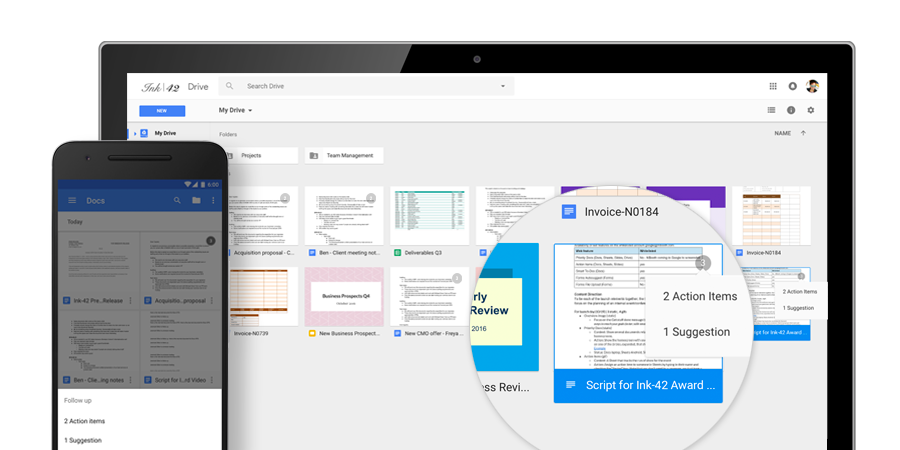
Once Action Items have been assigned, it’s easy for team members to identify documents, spreadsheets and presentations that need their attention. The next time they visit Docs, Sheets, Slides (or Drive) from their laptops or mobile apps, they’ll see a badge on any files with Action Items assigned to them, plus any unresolved suggestions that others have made to their files.

Image depicting how action items are displayed in Google Drive

Assignment: Ask someone to assign an Action Item to you and complete that action item by navigating My Drive to find that Action Item.

Once you complete reviewing the materials from the third week of the Google Collaboration Challenge take a few minutes to answer these questions: Week 3 Google Questionnaire