Showing posts with label apps. Show all posts

Friday, September 25, 2020

The Instagram Bug That Could Make You Vulnerable To Hackers

Saving a single image to a mobile device can allow a cyber attacker to access your location data, contacts, files stored on the device and camera. Check Point's head of security, the world’s leading cyber security provider, describes the process as the attacker sending an image to the target's email, text message or any other communication platform. The picture is then saved to the target's mobile device and once saved the target opens Instagram it gives the attacker full access to the users phone and data.

To protect yourself from this type of invasion of privacy you should regularly:


  • Update the apps and operating systems on your mobile device.

  • Pay attention to the kinds of approvals and permissions you are giving to app developers. You should always read the fine print before approving permissions. 


For more information, please check out this article


Tuesday, January 21, 2020

Become a G Suite Power User!

Learn how to become a G Suite Power User!

Many of the G Suite tools allow you to utilize many powerful features and abilities. Have a look at the many resources in the G Suite for power users page to learn more about these powerful features and abilities.

With these resources you can learn more of the advanced capabilities of G Suite that can help improve your productivity at work. G Suite helps you transform your work to be faster and smarter, and to collaborate better.

For additional resources, please see G Suite for power users

Sunday, July 7, 2019

Google Summer Collaboration Challenge Week 6

Google Forms

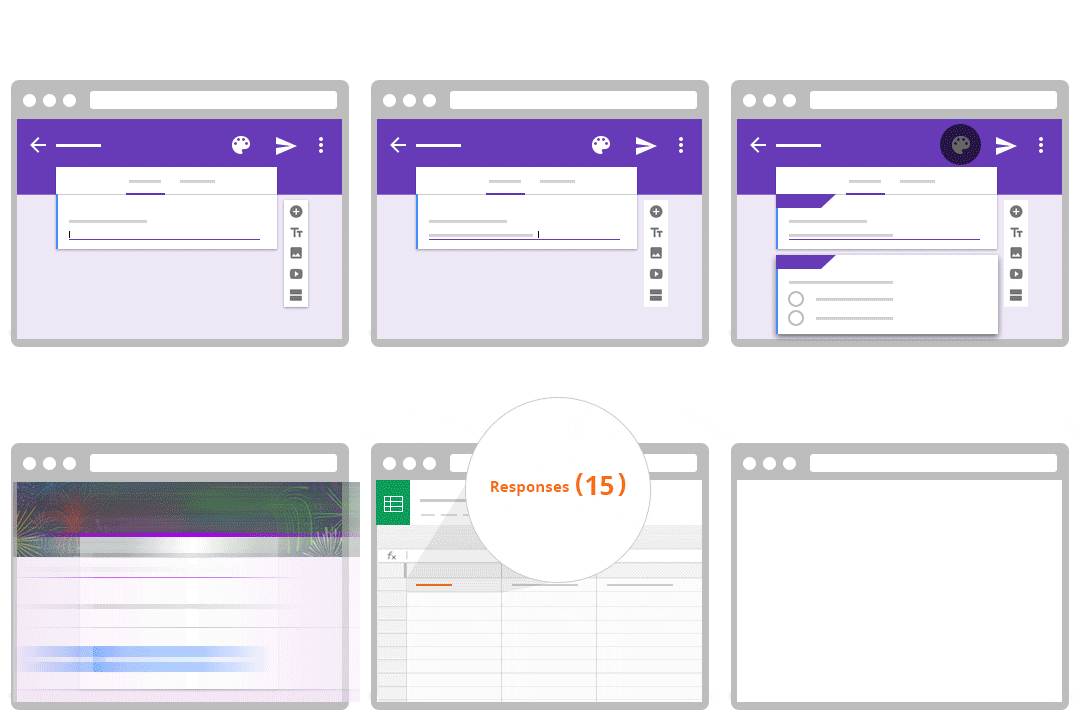
Gif depicting the use of Google Forms as a survey tool
Google Forms is a useful feature that allows you to manage event registrations, create a quick opinion poll, and much more. With Google Forms, you can create and analyze surveys right in your mobile or web browser—no special software required. You get instant results as they come in. And, you can summarize survey results at a glance with charts and graphs.

Getting Started with Google Forms
To get started, head to forms.google.com and select Blank. This will provide you with an empty canvas that you can begin to fill with questions. Note that you have many templates that you can choose from. For further instructions, please complete this tutorial for creating a Google Form.

When responses are submitted, you will be sent an email notifying you that someone has completed your Form. You also have the ability with Google Forms to organize responses into a Google Sheets. This is especially useful when analyzing responses.

Assignment: Following the instructions in the tutorial, create a Google Form survey asking for a name and five multiple choice questions and have a friend take the survey.

Extra Credit: Have their name and responses sent to a Google Sheets.

Once you complete reviewing the materials from the seventh week of the Google Collaboration Challenge take a few minutes to answer these questions: Week 6 Google Drive Questionnaire

Sunday, June 30, 2019

Google Collaboration Challenge Week 5


Using Google Calendar

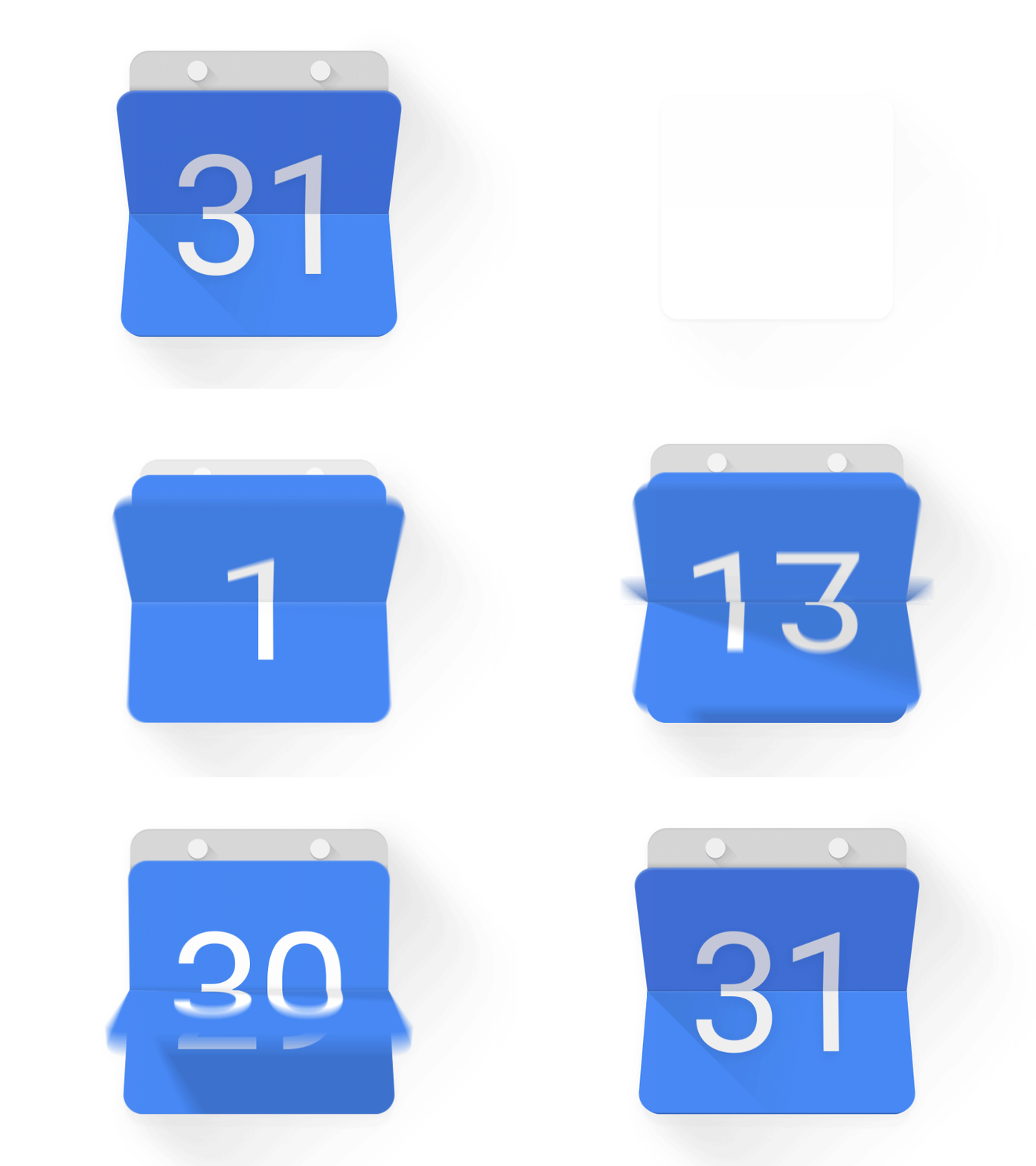
Gif depicting an animation of the number of days in a monthWith Google Calendar, you can quickly schedule meetings and events, and get reminders about upcoming activities, so you always know what’s next. This week we'll show you how to setup your Google Calendar to keep track of classes, meetings, and events as well as configure Calendar to let others know when you are available.


Getting started with Google Calendar

Let's start by getting familiar with Google Calendar. In this tutorial, we'll explore Calendar basics including creating meetings, reminders, and invitations as well as customizing the look and function of Calendar.


Configure Calendar

First, we'll need to make sure the Calendar is configured to securely share your Free/Busy information while keeping your event details private.


1 - Access Calendar by clicking the Google Apps menu and selecting "Calendar. The Google Apps menu can be accessed from any Google app including Gmail.

2 - In calendar, select the "gear" icon at the top right of the page and select "Settings".

3 - In the Calendar Settings screen select "Calendars" from the top menu, then click the link for the first calendar in the list. The first calendar should be your name.

4 - In the details screen, click "Share this Calendar" from the top menu. Recommended settings are below. Be sure to check the appropriate boxes and select "See only free/busy" from both drop-downs.

Image depicting how calendars can be shared within Google Calendar

 Your calendar has now been configured to the recommended settings to share your availability with others while keeping your event details private.


Creating Appointment Slots with Google Calendar

You can set up appointments on your calendar that people can reserve. For instance, professors can have their students reserve time during office hours each week. For instructions on how to create events and invite people, please click the link to the tutorial below and complete the tutorial below.

Get familiar with Google Calendar

Assignment: Complete the "Get Started with Calendar" tutorial to create and manage your first personal event, invite others, and set reminders.

Once you complete reviewing the materials from the fifth week of the Google Collaboration Challenge take a few minutes to answer these questions: Week 5 Google Drive Questionnaire

Sunday, June 16, 2019

Google Collaboration Challenge Week 3

Utilize Action Items to Work More Productively with Google Docs

One of the core promises of Google Docs is to help you and your team go from collecting ideas to achieving your goals as quickly and easily as possible. That’s why Google Docs recently launched Explore in Docs, Sheets and Slides — with machine intelligence built right in — to help your team create amazing presentations, spreadsheets and documents in a fraction of the time it used to take.

Try out two new time-saving features designed to speed up and simplify the way you work, so you can focus on bringing your team’s ideas to life.

1. Spend less time figuring out who owns what with Action Items


According to research by the McKinsey Global Institute, employees spend about 20 percent of their work week — nearly an entire day — searching for details internally and tracking down colleagues for answers. This can be especially true when a document is full of ideas, requests and comments, making it difficult to get a clear sense of who’s responsible for what.

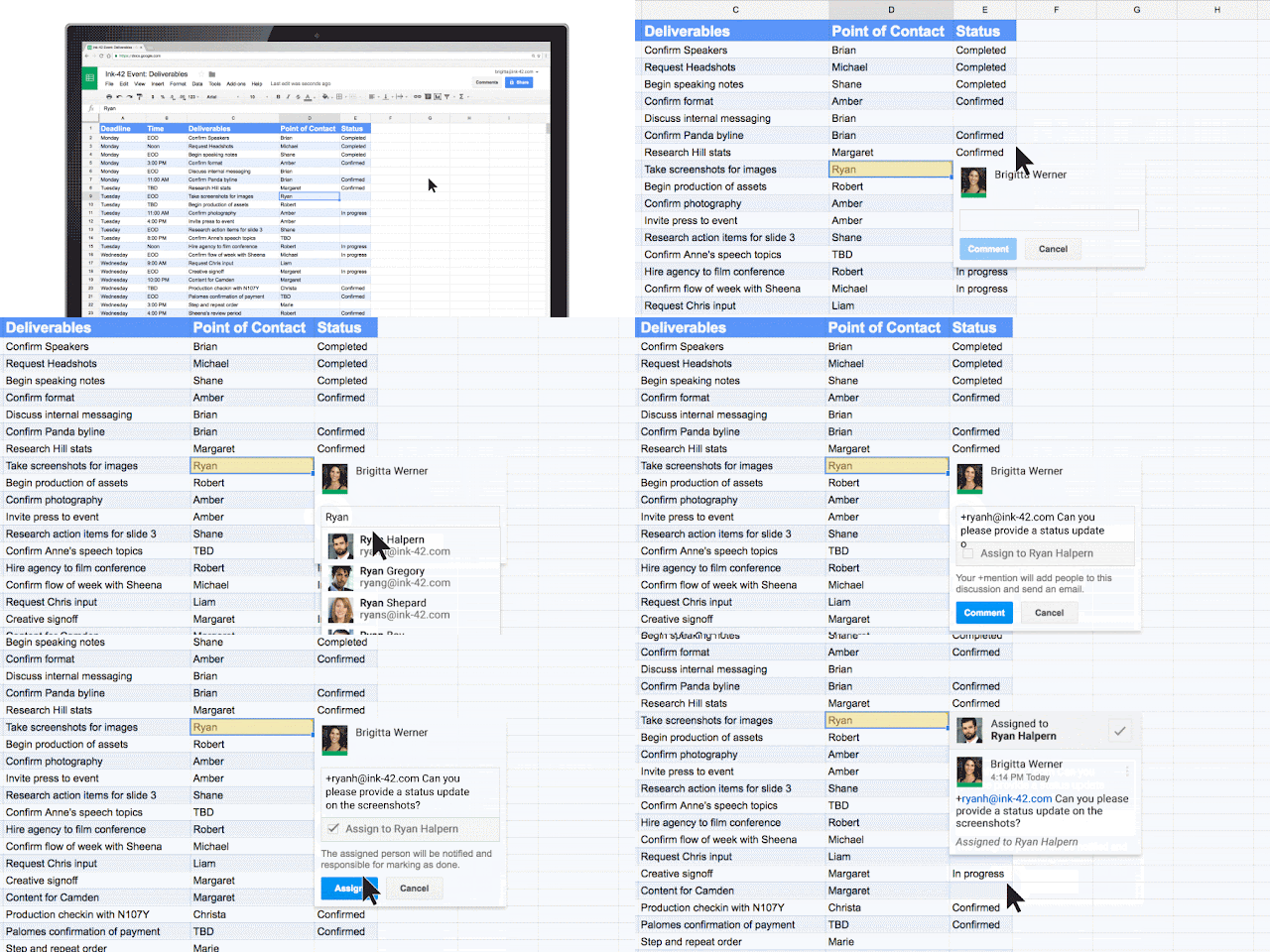
To help keep your projects moving, when you type phrases like “Ryan to follow up on the keynote script,” or “Andrea to schedule a weekly check in” on desktop, Docs will intelligently suggest an Action Item to assign to the right person, thanks to Natural Language Processing (NLP).
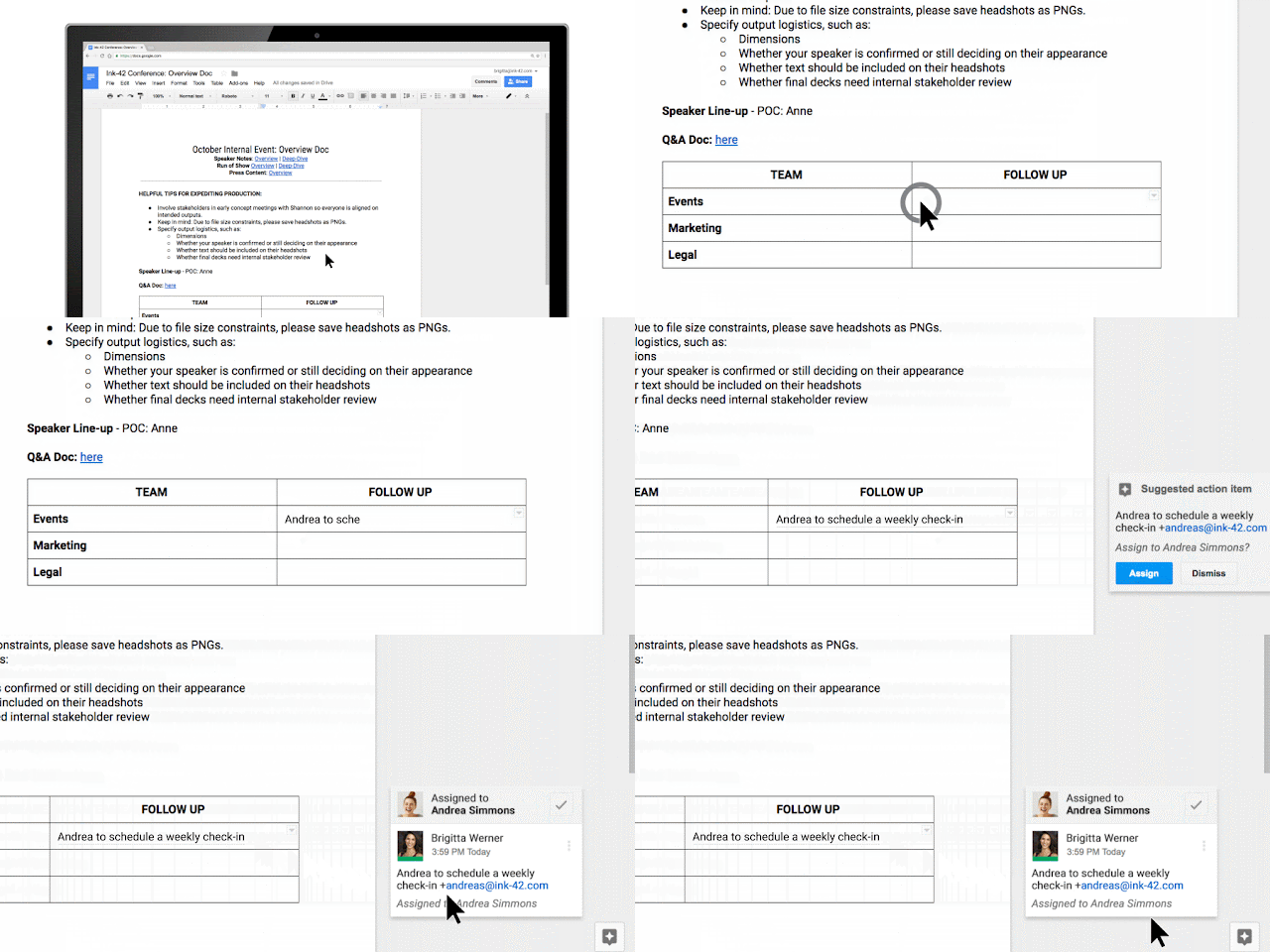

Gif depicting how an action items work

Assignment:
Manually assign an Action Item to someone in the Docs, Sheets and Slides desktop and mobile apps by mentioning their name in a comment and checking the new Action Item box. The assignee will get an email notification and see the Action Item(s) clearly highlighted with a blue bar when they open the file.Gif depicting how to assign action items

2. Spend less time searching for the files that need attention


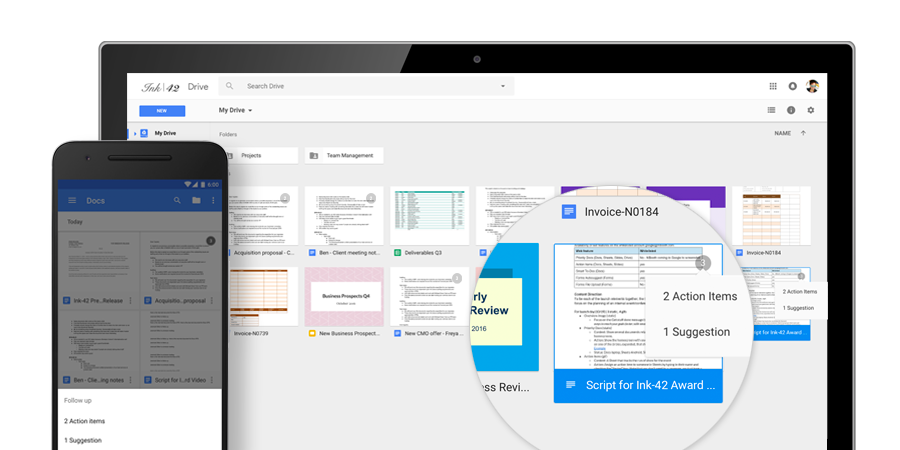
Once Action Items have been assigned, it’s easy for team members to identify documents, spreadsheets and presentations that need their attention. The next time they visit Docs, Sheets, Slides (or Drive) from their laptops or mobile apps, they’ll see a badge on any files with Action Items assigned to them, plus any unresolved suggestions that others have made to their files.

Image depicting how action items are displayed in Google Drive

Assignment: Ask someone to assign an Action Item to you and complete that action item by navigating My Drive to find that Action Item.

Once you complete reviewing the materials from the third week of the Google Collaboration Challenge take a few minutes to answer these questions: Week 3 Google Questionnaire

Sunday, June 9, 2019

Google Summer Collaboration Challenge Week 2


Getting started with Docs

Let's start by getting introduced to Docs - an online replacement for Microsoft Word. The following tutorial will walk you through a number of steps to become more familiar with Docs. The same can be repeated for Sheets (replaces Excel) and Slides (replaces PowerPoint).

Track changes, make progress 
An gif depicting the icons for Google Docs, Sheets, and Slides

It can take dozens of edits to make a document just right—especially a legal agreement, project proposal or research paper. These new updates in Docs let you more easily track your team’s changes. Now, your team can:
  1. Name versions of a Doc, Sheet or Slide on the web.
  2. Preview “clean versions” of Docs on the web to see what your Doc looks like without comments or suggested edits.
  3. Accept or reject all edit suggestions at once in your Doc so your team doesn’t have to review every single punctuation mark or formatting update.
  4. Suggest changes in a Doc from an Android, iPhone or iPad device.
  5. Compare documents and review redlines instantly with Litera Change-Pro or Workshare Add-ons in Docs. 

Assignment:  Complete the "Introduction to Docs" tutorial by creating, editing, and sharing a new Doc.

Extra Credit:  Try the same tutorial for Sheets and Slides.

Working OFFLINE

 A useful feature for Google Apps (Docs, Slides, and Sheets) is the ability to work offline without an Internet connection.  By enabling "Offline Mode" within Google Drive, you'll have access to edit all of your files from a Chrome browser wherever you are - even when WIFI is spotty or unavailable.
View this video to find out how to enable offline mode for Google Drive.


Assignment:  Enable OFFLINE MODE for Google Drive.

Note:  it may take a while to make all files and folders accessible offline.  After enabling "offline mode", disconnect from WIFI and try creating and editing a new Doc or Sheet.

Once you complete reviewing the materials from the second week of the Google Collaboration Challenge take a few minutes to answer these questions: Week 2 Google Drive Questionnaire

Partially reposted from: What Can You Do With Docs?

Sunday, July 8, 2018

Google Summer Collaboration Challenge Week 7


Gif depicting the use of Google Forms as a survey tool

Google Forms

Google Forms is a useful feature that allows you to manage event registrations, create a quick opinion poll, and much more. With Google Forms, you can create and analyze surveys right in your mobile or web browser—no special software required. You get instant results as they come in. And, you can summarize survey results at a glance with charts and graphs.

Getting Started with Google Forms

To get started, head to forms.google.com and select Blank. This will provide you with an empty canvas that you can begin to fill with questions. Note that you have many templates that you can choose from. For further instructions, please complete this tutorial for creating a Google Form.

When responses are submitted, you will be sent an email notifying you that someone has completed your Form. You also have the ability with Google Forms to organize responses into a Google Sheets. This is especially useful when analyzing responses.

Assignment: Following the instructions in the tutorial, create a Google Form survey asking for a name and five multiple choice questions and have a friend take the survey.

Extra Credit: Have their name and responses sent to a Google Sheets.

Once you complete reviewing the materials from the seventh week of the Google Collaboration Challenge take a few minutes to answer these questions: Week 7 Google Drive Questionnaire

Sunday, June 24, 2018

Google Summer Collaboration Challenge Week 5


Using Google Calendar

Gif depicting an animation of the number of days in a monthWith Google Calendar, you can quickly schedule meetings and events, and get reminders about upcoming activities, so you always know what’s next. This week we'll show you how to setup your Google Calendar to keep track of classes, meetings, and events as well as configure Calendar to let others know when you are available.

Getting started with Google Calendar

Let's start by getting familiar with Google Calendar. In this tutorial, we'll explore Calendar basics including creating meetings, reminders, and invitations as well as customizing the look and function of Calendar.

Configure Calendar

First, we'll need to make sure the Calendar is configured to securely share your Free/Busy information while keeping your event details private.


1 - Access Calendar by clicking the Google Apps menu and selecting "Calendar. The Google Apps menu can be accessed from any Google app including Gmail.

2 - In calendar, select the "gear" icon at the top right of the page and select "Settings".

3 - In the Calendar Settings screen select "Calendars" from the top menu, then click the link for the first calendar in the list. The first calendar should be your name.

4 - In the details screen, click "Share this Calendar" from the top menu. Recommended settings are below. Be sure to check the appropriate boxes and select "See only free/busy" from both drop-downs.

Image depicting how calendars can be shared within Google Calendar

 Your calendar has now been configured to the recommended settings to share your availability with others while keeping your event details private.

Creating Appointment Slots with Google Calendar

You can set up appointments on your calendar that people can reserve. For instance, professors can have their students reserve time during office hours each week. For instructions on how to create events and invite people, please click the link to the tutorial below and complete the tutorial below.

Get familiar with Google Calendar

Assignment: Complete the "Get Started with Calendar" tutorial to create and manage your first personal event, invite others, and set reminders.

Once you complete reviewing the materials from the fifth week of the Google Collaboration Challenge take a few minutes to answer these questions: Week 5 Google Drive Questionnaire

Sunday, June 10, 2018

Google Summer Collaboration Challenge Week 3


Utilize Action Items to Work More Productively with Google Docs

One of the core promises of Google Docs is to help you and your team go from collecting ideas to achieving your goals as quickly and easily as possible. That’s why Google Docs recently launched Explore in Docs, Sheets and Slides — with machine intelligence built right in — to help your team create amazing presentations, spreadsheets and documents in a fraction of the time it used to take.

Try out two new time-saving features designed to speed up and simplify the way you work, so you can focus on bringing your team’s ideas to life.

1. Spend less time figuring out who owns what with Action Items


According to research by the McKinsey Global Institute, employees spend about 20 percent of their work week — nearly an entire day — searching for details internally and tracking down colleagues for answers. This can be especially true when a document is full of ideas, requests and comments, making it difficult to get a clear sense of who’s responsible for what.

To help keep your projects moving, when you type phrases like “Ryan to follow up on the keynote script,” or “Andrea to schedule a weekly check in” on desktop, Docs will intelligently suggest an Action Item to assign to the right person, thanks to Natural Language Processing (NLP).


Gif depicting how an action items work

Assignment:
Manually assign an Action Item to someone in the Docs, Sheets and Slides desktop and mobile apps by mentioning their name in a comment and checking the new Action Item box. The assignee will get an email notification and see the Action Item(s) clearly highlighted with a blue bar when they open the file.Gif depicting how to assign action items

2. Spend less time searching for the files that need attention


Once Action Items have been assigned, it’s easy for team members to identify documents, spreadsheets and presentations that need their attention. The next time they visit Docs, Sheets, Slides (or Drive) from their laptops or mobile apps, they’ll see a badge on any files with Action Items assigned to them, plus any unresolved suggestions that others have made to their files.

Image depicting how action items are displayed in Google Drive

Assignment: Ask someone to assign an Action Item to you and complete that action item by navigating My Drive to find that Action Item.

Once you complete reviewing the materials from the third week of the Google Collaboration Challenge take a few minutes to answer these questions: Week 3 Google Questionnaire
Sunday, June 3, 2018

Google Summer Collaboration Challenge Week 2


Getting started with Docs

Let's start by getting introduced to Docs - an online replacement for Microsoft Word. The following tutorial will walk you through a number of steps to become more familiar with Docs. The same can be repeated for Sheets (replaces Excel) and Slides (replaces PowerPoint).

Track changes, make progress 
An gif depicting the icons for Google Docs, Sheets, and Slides

It can take dozens of edits to make a document just right—especially a legal agreement, project proposal or research paper. These new updates in Docs let you more easily track your team’s changes. Now, your team can:
  1. Name versions of a Doc, Sheet or Slide on the web.
  2. Preview “clean versions” of Docs on the web to see what your Doc looks like without comments or suggested edits.
  3. Accept or reject all edit suggestions at once in your Doc so your team doesn’t have to review every single punctuation mark or formatting update.
  4. Suggest changes in a Doc from an Android, iPhone or iPad device.
  5. Compare documents and review redlines instantly with Litera Change-Pro or Workshare Add-ons in Docs. 

Assignment:  Complete the "Introduction to Docs" tutorial by creating, editing, and sharing a new Doc.

Extra Credit:  Try the same tutorial for Sheets and Slides.


Working OFFLINE

 A useful feature for Google Apps (Docs, Slides, and Sheets) is the ability to work offline without an Internet connection.  By enabling "Offline Mode" within Google Drive, you'll have access to edit all of your files from a Chrome browser wherever you are - even when WIFI is spotty or unavailable.
View this video to find out how to enable offline mode for Google Drive.

Assignment:  Enable OFFLINE MODE for Google Drive.

note:  it may take a while to make all files and folders accessible offline.  After enabling "offline mode", disconnect from WIFI and try creating and editing a new Doc or Sheet.

Once you complete reviewing the materials from the second week of the Google Collaboration Challenge take a few minutes to answer these questions: Week 2 Google Drive Questionnaire