Jamboards can be found in the Library, Thomas Hall, and Leo!
Updates and news on how technology is changing in Manhattan University.
Showing posts with label collaboration. Show all posts
Sunday, September 15, 2019
Sunday, April 14, 2019
Week 8 Tech Showcase - G Suite Productivity Apps
G Suite
G Suite is Google's full range of productivity apps based in the cloud that allow you to connect, access, and create. Clicking on each app name will direct you to the G Suite Learning Center for that product.
With G Suite, you can connect by utilizing Gmail, Google Calendar, and Hangouts Chat, and Hangouts Meet.
Google Calendar allows you to set up events on a cloud based calendar, and it is integrated seamlessly with Gmail, Drive, Contacts, Sites and Hangouts. You can also schedule events quickly by checking coworkers' availability or layering their calendars in a single view. You can share calendars so people see full event details or just if you are free.
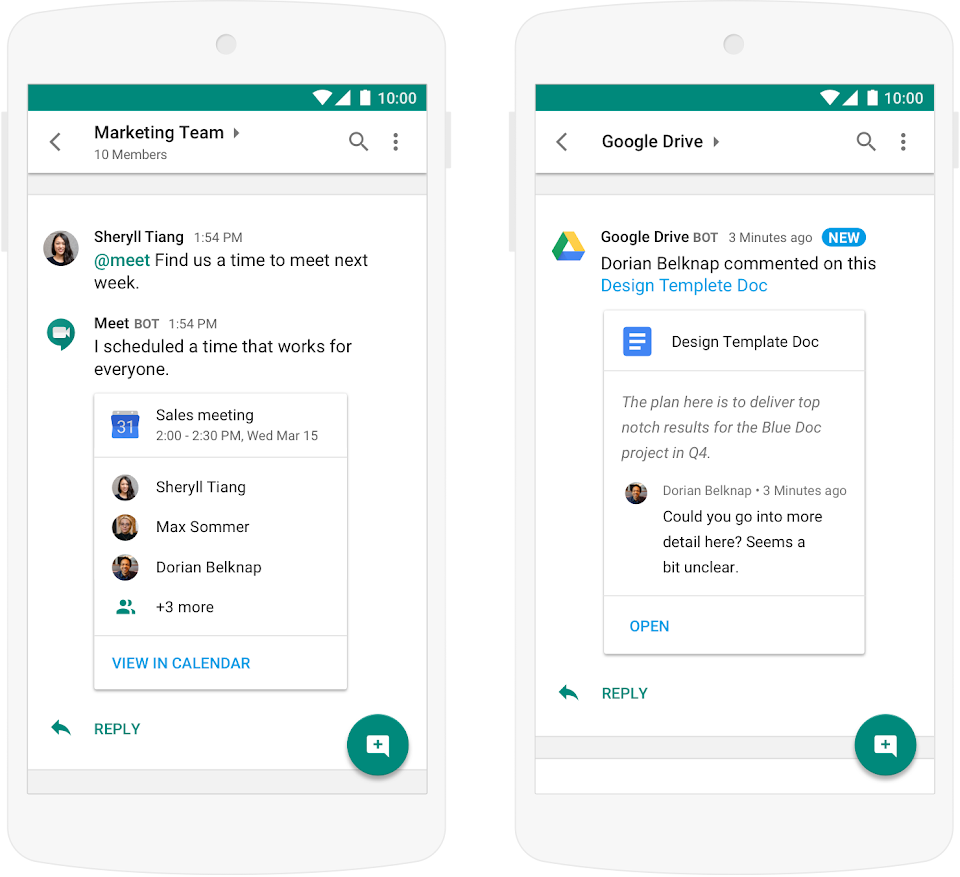
Hangouts Chat is an instant messaging solution that allows for communication either with one person or an entire group. It also features bots that can integrate other Google features such as Google Calendar and Google Drive as shown in the following image.

Hangouts Meet is a video conferencing solution that will be covered in next week's Tech Showcase.
G Suite also allows you to utilize cloud storage using Google Drive. G Suite allows you to have unlimited Google Drive cloud storage. This means you can store, access, and share your files in one secure place. You have the ability to access files anytime, anywhere from your desktop and mobile devices. Google Drive is especially useful for using less space on your device.
Additionally, you can create Team Drives which foster collaboration by allowing a shared drive where multiple people can upload files.
Google Docs allows you to create and edit text documents right in your browser with no dedicated software required. Multiple people can work at the same time, and every change/revision is saved automatically. It also allows you export to other file types such MS Word, PDF, etc. It can also convert Word files to Docs.
Google Slides allows you to create and edit presentations in your browser with no software required. Multiple people can work at the same time, and every change/revision is saved automatically. It also allows you export to other file types such PPT, PDF, etc. It can also convert PPT files to Slides.
Additionally, you can create Team Drives which foster collaboration by allowing a shared drive where multiple people can upload files.
With G Suite, you can also create Google Docs, Slides, Sheets, and Forms. These programs are Google's word processor, presentation, and spreadsheet programs.


Google Sheets allows you to create and edit spreadsheets in your browser with no software required.
Multiple people can work at the same time, and every change/revision is saved automatically. It also allows you export to other file types such Excel, PDF, etc. It can also convert Excel files to Sheets.
Google Forms allows you to easily create forms for surveys and questionnaires. Responses can be tracked from Google Forms as well as Google Sheets where it is integrated seamlessly.
We are interested in your feedback, please take a few moments to complete the following G Suite Productivity Apps Survey
Multiple people can work at the same time, and every change/revision is saved automatically. It also allows you export to other file types such Excel, PDF, etc. It can also convert Excel files to Sheets.
We are interested in your feedback, please take a few moments to complete the following G Suite Productivity Apps Survey
Labels:
cloud,
collaboration,
drive,
Forms,
G Suite,
Google Calendar,
Google Docs,
Hangouts Chat,
meets,
Sheets,
Slides
Sunday, September 30, 2018
Friday, March 2, 2018
ITS and Library Collaborate on Nercomp Presentation June 12, 2018
Anita McCarthy, ITS Training Coordinator, Richard Musal Director of Client Services & Operations, and Laurin Paradise, Reference & Instruction Librarian, are presenting at a Nercomp event June 12, 2018.
Their presentation will discuss how ITS and the Library collaborated to bring a Google Jamboard to the Library study room and how it is being used by students.
Tuesday, September 5, 2017
The Google Jamboard Has Arrived at Manhattan College!
Click here for more information about Google Jamboard:
Click here for instructions on how to use Google Jamboard:
Friday, August 25, 2017
Get on the Same Page: New Google Docs Features Help Power Team Collaboration
Getting people on the same page for a project can be tough. It requires managing a ton of opinions and suggestions. The last thing you should have to worry about is making sure your team is literally working on the same document. That’s why we built our powerful real-time editing tools to help with this—Google Docs, Sheets and Slides—so that teams can work together at the same time, using the most up-to-date version.
Today, we're introducing new updates to better help with "version control," to customize tools for your workflows, and to help teams locate information when they need it.
Track changes, make progress
It can take dozens of edits to make a document just right—especially a legal agreement, project proposal or research paper. These new updates in Docs let you more easily track your team’s changes. Now, your team can:
1. Name versions of a Doc, Sheet or Slide on the web.
Being able to assign custom names to versions of your document is a great way to keep a historical record of your team's progress. It's also helpful for communicating when a document is actually final. You can organize and track your team’s changes in one place under “Version history” (formerly known as “Revision history”) on the web. Select File > Version history > Name current version. For even quicker recall, there’s an option to select “Only show named versions” in Docs, Sheets or Slides.
2. Preview “clean versions” of Docs on the web to see what your Doc looks like without comments or suggested edits.
Select Tools > Review suggested edits > Preview accept all OR Preview reject all.
3. Accept or reject all edit suggestions at once in your Doc so your team doesn’t have to review every single punctuation mark or formatting update.
Select Tools > Review suggested edits > Accept all OR Reject all.
4. Suggest changes in a Doc from an Android, iPhone or iPad device.
Click the three dots menu in the top right of your Doc screen to suggest edits on the go. Turn on the “Suggest changes” toggle and start typing in “suggestion mode.”
5. Compare documents and review redlines instantly with Litera Change-Pro or Workshare Add-ons in Docs.
Here’s a quick way to preview and accept all changes (or reject them) and name versions of your document.
Partially reposted from:: https://www.blog.google/products/g-suite/get-same-page-new-google-docs-features-power-team-collaboration/
Labels:
collaboration,
Docs,
Google cloud,
GSuite
Subscribe to:
Comments (Atom)