Showing posts with label Google Docs. Show all posts

Monday, April 12, 2021

Google Drive, Docs, Sheets, and Slides Partial Outage

Update: As of 12:20PM, Google's Workspace Status Dashboard indicates issues are all resolved.

 Google is aware of an issue affecting some people utilizing Google Drive, Docs, Sheets, and Slides.  This issues is being worked on by Google.  You can check the Google Workspace Status Dashboard for updates on this outage.

Friday, December 11, 2020

Google Workspace: Share/View History of Docs, Sheets, and Slides Now Available

Google Workspace has released a new feature that allows you to see a list of all those who you have shared the document with as well as the last time they viewed it. 

For directions on how to access this feature please refer to this link

Friday, May 31, 2019

Google Docs Adds Per Section Margins and New Break Formatting Tools


The latest update to Google Docs adds two new tools to the G Suite word processor that improves page formatting. Especially useful when printing, the first deals with inserting and viewing breaks, while the second works in tandem to allow custom section margins.

Insert section breaks and view section breaks in Docs
You can now insert a next page or continuous section break in Google Docs by going to Insert > Break. From here, you can select next or continuous. Note both types of breaks will start at the place of your cursor location.

To easily view where section breaks are located in your document, you can use the new show section breaks tool by going to View > Show section breaks. When Show selection breaks is enabled, you’ll see a blue dotted line where each section break is located.


Adjust margins per section 
It’s now possible to use the ruler to adjust the left and right margins by section. Previously, it was only possible to adjust the margins for the entire document.

If you don’t make a selection, the ruler will adjust the margins for the section that corresponds to the cursor location. Or, you can highlight multiple sections of your doc to be adjusted.

You can also adjust margins per-section by going to File > Page Setup.


Wednesday, May 29, 2019

Directly Edit Microsoft Office Files with Google Docs, Sheets & Slides

What’s changing 

With Office editing, you can now edit, comment, and collaborate on Microsoft Office files using Google Docs, Sheets, and Slides. This feature brings the collaboration benefits of G Suite to Office files while streamlining workflows by eliminating the need to convert file types.


Why you’d use it 

Office editing will make it easy for G Suite users to open and edit Microsoft Office files that have been shared by partners, vendors or other teams. In cases where some members of your organization use Office while others use G Suite, this ensures seamless collaboration and eliminates the need to consider or convert file types.

Office editing brings everyone the benefits of G Suite’s real time collaboration tools and intelligence features to Office files.


End users:
  • In Google Drive, double-click your Office file. This will open a preview of the file. 
  • At the top, click Open in Google Docs, Sheets, or Slides
  • From here, you can edit, share, view version history, collaborate in real-time with others, and more. 
  • All changes you make will be saved to the original Office file. 

Additional details 

The following Office file types are supported: 
  • Word files: .doc, .docx, .dot 
  • Excel files: .xls, .xlsx, .xlsm (macro enabled Excel files), .xlt 
  • Powerpoint files: .ppt, .pptx, .pps, .pot 
Note: If you edit Word, Excel, or PowerPoint documents older than Office 2007, files will be saved to a newer format when editing using Office editing. 

Note: 

If you have the Office Editing for Docs, Sheets & Slides Extension already installed it must be removed before this new feature will work:

Sign into Google Chrome Browser with your Managed Google Account
Navigate to the upper right of your screen to the Settings area
Image of where the Settings field is located on a Google Chrome web viewer

Select More Tools

Image of where to find the More Tools on a dropdown menu

Select Extensions
Image of drop down menu with Extensions highlighted

Locate the Office Editing for Docs, Sheets & Slides from your options of extensions and select Remove

Image of Extension icons with the Office Editing for Docs, Sheets & Slides highlighted


Helpful links 


Sunday, April 14, 2019

Week 8 Tech Showcase - G Suite Productivity Apps

G Suite

G Suite is Google's full range of productivity apps based in the cloud that allow you to connect, access, and create. Clicking on each app name will direct you to the G Suite Learning Center for that product.

With G Suite, you can connect by utilizing Gmail, Google Calendar, and Hangouts Chat, and Hangouts Meet.

Image result for gmail icon

Gmail allows you to be updated with secure, private, and ad-free email. In addition, Gmail keeps you updated with real-time message notifications, and safely stores your important emails and data.

Image result for google calendar icon

Google Calendar allows you to set up events on a cloud based calendar, and it is integrated seamlessly with Gmail, Drive, Contacts, Sites and Hangouts. You can also schedule events quickly by checking coworkers' availability or layering their calendars in a single view. You can share calendars so people see full event details or just if you are free.

 Image result for hangouts chat icon

    Hangouts Chat is an instant messaging solution that allows for communication either with one person or an entire group. It also features bots that can integrate other Google features such as Google Calendar and Google Drive as shown in the following image.
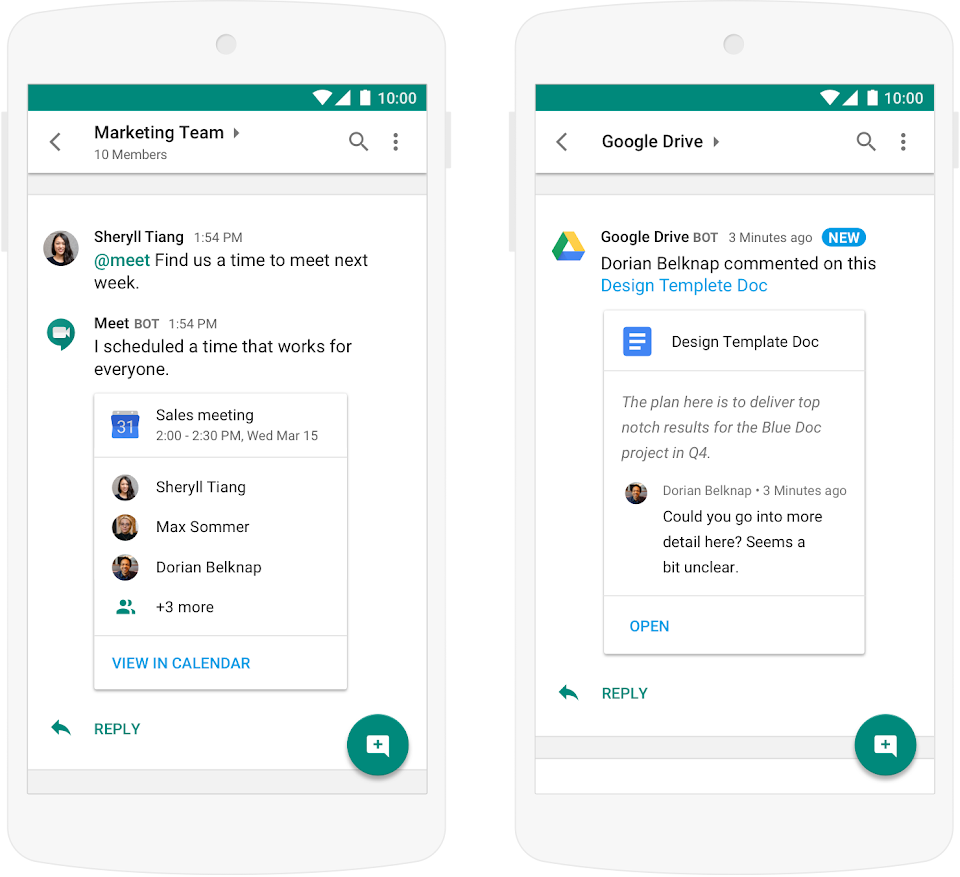


    Image result for hangouts meet

    Hangouts Meet is a video conferencing solution that will be covered in next week's Tech Showcase.

    Image result for google drive icon\

    G Suite also allows you to utilize cloud storage using Google Drive. G Suite allows you to have unlimited Google Drive cloud storage. This means you can store, access, and share your files in one secure place. You have the ability to access files anytime, anywhere from your desktop and mobile devices. Google Drive is especially useful for using less space on your device.

    Additionally, you can create Team Drives which foster collaboration by allowing a shared drive where multiple people can upload files.

    With G Suite, you can also create Google Docs, Slides, Sheets, and Forms. These programs are Google's word processor, presentation, and spreadsheet programs.

    Image result for google docs

    Google Docs allows you to create and edit text documents right in your browser with no dedicated software required. Multiple people can work at the same time, and every change/revision is saved automatically. It also allows you export to other file types such MS Word, PDF, etc. It can also convert Word files to Docs.

    Image result for google slides

    Google Slides allows you to create and edit presentations in your browser with no software required. Multiple people can work at the same time, and every change/revision is saved automatically. It also allows you export to other file types such PPT, PDF, etc. It can also convert PPT files to Slides.

    Image result for google sheets icon

    Google Sheets allows you to create and edit spreadsheets in your browser with no software required.
    Multiple people can work at the same time, and every change/revision is saved automatically. It also allows you export to other file types such Excel, PDF, etc. It can also convert Excel files to Sheets.

    Image result for google forms

    Google Forms allows you to easily create forms for surveys and questionnaires. Responses can be tracked from Google Forms as well as Google Sheets where it is integrated seamlessly.

    We are interested in your feedback, please take a few moments to complete the following G Suite Productivity Apps Survey

    Monday, April 23, 2018

    Send a PDF version of a document or spreadsheet

    Need to send a PDF version of a document or spreadsheet? Share via URL.
    Here's how → http://goo.gl/TuFHSE 

    Reposted from @GSuite

    Thursday, November 16, 2017

    Convert text to all CAPS and more in Google Docs

     Capitalizing a large portion of text or an especially long title can be a pain.  Doing the opposite—converting capital letters to lowercase—is equally a waste of time. With this launch, we’re making those tasks quick and easy in Google Docs on the web.


    Starting today, simply choose “Capitalization” from the Format menu in Docs, and select one of the following:
    • lowercase, to make all the letters in your selection lowercase.
    • UPPERCASE, to capitalize all the letters in your selection.
    • Title Case, to capitalize the first letter of each word in your selection.

    It’s that easy. Like other recent launches in Docs, this feature allows you to spend less time formatting and more time on the things that matter, like strategizing, collaborating, and developing new ideas.

    Partially reposted from: https://gsuiteupdates.googleblog.com/2017/03/convert-text-to-all-caps-and-more-in.html

    Thursday, September 7, 2017

    UPDATE 3 1:14pm RESOLVED: September 7 Google Drive Issue

    UPDATE 3

    Google is now reporting the drive issue as completely resolved. If you are still experiencing issues it may be necessary to restart your browser.

    ----

    UPDATE 2

    Google has posted a Service Disruption notification to their G Suite Status Dashboard.

    Please visit the following page for updates directly from Google on the status of the disruption:
    https://www.google.com/appsstatus#hl=en&v=issue&sid=4&iid=768deb9fad2a675680dbee7e8712bc41

    Full G Suite Status Dashboard:
    https://www.google.com/appsstatus#hl=en&v=status

    ----

    UPDATE 1

    Google is aware of the issue and is working to resolve as quickly as possible.

    ----

    ITS is currently investigating reports of issues using google drive.

    We are opening a ticket with google at this time. The issue appears to be within Google, not Manhattan College.


    Thursday, May 4, 2017

    UPDATE - Phishing Attack - Google Docs

    Steps have been taken by Google to fully mitigate the malicious application and related phishing attack that occurred on Wednesday afternoon.  Google has provided the following statement:


    Link to Google's Security Checkup tool:
    http://g.co/SecurityCheckup

    Wednesday, March 29, 2017

    Capture Ideas in Google Keep, bring them to life in Google Docs


    Great ideas can surface in unexpected places.  Google has created Keep to capture your thoughts anytime, anywhere -- with smart tools to help you easily organize your notes, ideas and to dos.


    Starting today, you can capture your ideas improvements for work.  Keep is now a part of G Suite.  You can also take your ideas and notes from Keep and easily add them to Docs for easier brainstorming.


    Get started by recording your notes, lists and drawings in Keep on AndroidiOS, Chrome or the web.  While in Docs on the web, access the Keep notepad, via the Tools menu.  Your Keep notes will appear in a side panel within Docs.

    Here are a few ways you can now work better with the integration between Keep and Docs.
    • Drag your notes from Keep directly into your work documents.
    • Easily search your notes in Keep while in Docs to find the information you need to complete your project.
    • Add a new note in the Keep notepad or select text from inside of your document and easily add it to a new note (just right click and select "Save to Keep notepad").  When you open that note in Keep, we'll include a link back to the source document so you can always refer back to it.

    Use Keep to capture your ideas and thoughts wherever you are, whenever inspiration strikes.  And now, quickly turn those thoughts into action -- right in Docs.

    Partially reposted from https://blog.google/products/g-suite/capture-ideas-google-keep-bring-them-life-google-docs/

    Tuesday, February 28, 2017

    Utilize Action Items to Work More Productively with Google Docs

    One of the core promises of Google Docs is to help you and your team go from collecting ideas to achieving your goals as quickly and easily as possible. That’s why Google Docs recently launched Explore in Docs, Sheets and Slides — with machine intelligence built right in — to help your team create amazing presentations, spreadsheets and documents in a fraction of the time it used to take.

    Try out two new time-saving features designed to speed up and simplify the way you work, so you can focus on bringing your team’s ideas to life.
    1. Spend less time figuring out who owns what with Action Items

    According to research by the McKinsey Global Institute, employees spend about 20 percent of their work week — nearly an entire day — searching for details internally and tracking down colleagues for answers. This can be especially true when a document is full of ideas, requests and comments, making it difficult to get a clear sense of who’s responsible for what.

    To help keep your projects moving, when you type phrases like “Ryan to follow up on the keynote script,” or “Andrea to schedule a weekly check in” on desktop, Docs will intelligently suggest an Action Item to assign to the right person, thanks to Natural Language Processing (NLP).


    You can also manually assign an Action Item to someone in the Docs, Sheets and Slides desktop and mobile apps by mentioning their name in a comment and checking the new Action Item box. The assignee will get an email notification and see the Action Item(s) clearly highlighted with a blue bar when they open the file.


    2. Spend less time searching for the files that need attention

    Once Action Items have been assigned, it’s easy for team members to identify documents, spreadsheets and presentations that need their attention. The next time they visit Docs, Sheets, Slides (or Drive) from their laptops or mobile apps, they’ll see a badge on any files with Action Items assigned to them, plus any unresolved suggestions that others have made to their files.

    partially reposted from gsuiteupdates.googleblog.com/2016/10


    Monday, September 26, 2016

    Head Back to School with Drive: Student Edition


    Summer has come to an end, which for college students usually means the end of a grueling internship, a road-trip or getting moved back to campus, embracing friends you have not seen in months, and, oh yeah, that other tiny detail: the start of classes.

    With so much else going on — friends, extracurriculars, sports — students today need to be as efficient and productive as possible when they dedicate time to studying and doing homework. In this age of internet transformation, Gen Y is more tech savvy than ever before, and we expect online education to meet our technology standards.

    The purpose (and hope) of this blog post is to give a few examples of how I used — and benefitted from — Google Docs, Slides, and Forms in college.

    Example 1: Have a group project? Stay calm, cool, and collected. Docs make collaboration easy!

    If you have ever had to work on a group paper or project, you know how cumbersome and inefficient the process can be. There are two ways to go about accomplishing this task: (1) your group sends 173 emails trying to coordinate a time at which everyone is available to meet or (2) each person writes a portion of the paper and the group tries to synthesize uncoordinated chunks of different writing styles into one cohesive paper, which always ends with one Type A student editing the entire thing. Luckily, there is now an option 3, and it’s called Google Docs.

    To start using Docs, just open a doc, share it with the group members, and write. It’s that simple. Having the ability to work together in the cloud means no coordinating schedules, no wasting time on multiple revisions, and no unequal division of group member contributions.

    For example, when I had to complete a group paper for an Economics class, my two groupmates and I decided we would each write one-third of the paper. We put our respective portions into a single document and then went through each other’s writing, adding comments and correcting errors when necessary.
    Example 2: Google Slides. Enough Said.

    Presentations are an inevitable college assignment. Whether you are a history or physics major, you cannot escape this task. Before using Slides, the process of creating presentations was inefficient, awkward (so...what should we put on this slide…?) and time-consuming.

    For one of my physics laboratory experiments, my partner was an exchange student from France. While we understood each other in the lab by scribbling Greek letters and numbers to solve problems, at times it was difficult to communicate since English wasn’t her first language. So when we had to create our presentation, it sounded like a grueling task for both of us.

    We decided to use Slides, divide the work, add notes, and edit together from within the presentation. Our communication was clear and efficient when we typed comments to each other since we could take our time to be articulate, which virtually dissolved our language barrier. In the end, creating the presentation was quite enjoyable; we were proud of the final product and our professors were impressed by how well we worked together.

    Example 3: Using Forms to organize information and make it universally accessible and useful...sound familiar?

    Being a full-time student and an active member of an extracurricular activity (sport, club, fraternity/sorority, etc.) can sometimes feel like a full-time job. It requires teamwork, organization, time-management, and dedication.

    Being the leader of a group demands more: writing agendas, scheduling meetings, organizing fundraisers, and sticking to a budget. Keeping track of all of these items can be difficult, as each task requires different resources — email, documents, spreadsheets, polls, and more.

    As the house president of a 165-student residence hall for two years, I struggled to keep track of it all, but after switching to Forms, the whole process became seamless.

    For our fundraiser, my house sold over 300 t-shirts to the student body. Because of the high quantity, we utilized a pre-order process in which students could order their size/color and pay in advance. Before we had Google Forms, we used a paper form to collect pre-orders (I still try to block out all those hours spent inputting the paper orders into my computer!).

    Not only did using a form make it easier to collect pre-orders, it also made it easier to distribute the order form. As a result, our pre-orders increased by 40% in one year! The form did all of the heavy lifting for me. Orders were seamlessly filed into a spreadsheet, and I simply had to click “Show summary of responses” to place the order, making my job easier and freeing up time so that I could focus on other aspects of my role as a leader.
    So there you have it, three examples of how using Docs, Slides, and Forms in college made me more efficient, saved me time, and increased my productivity. For those of you about to begin a new semester, good luck!
    Partially reposted from the Google Drive Blog: http://googledrive.blogspot.com
    Originally posted by  Alex Nagourney is a 2013 graduate of Wellesley College. She was a 2011 Google BOLD intern and a Google Student Ambassador from 2011-2013 - https://drive.googleblog.com/2013/08/drivebts-students.html