You can now attach files to your emails via Google Drive. The beauty of
Google Drive is that it allows for easy collaboration. There is no
longer a need to worry about edits getting lost due to multiple editors
working on a passed around file. With Google Drive multiple editors can
work on the same exact document at the same exact time and all edits
are tracked. You can even see your colleague typing as you do!
Another benefit of Google Drive attachments is that your attachment size
limit goes from 25MB (traditional attachment) to 10GB (Google Drive
attachment).
Google Drive also gives access control. Only users that you grant
access to can see the file. So your email can be forwarded, but unless
you grant access or your collaborator does, the file can not be
accessed.
As part of the Google Drive attachment function, before sending the
email, the attachments will be scanned to see if the people to which you
are sending the file have access or not. You will then get a warning
if they do not have access and you will be asked if you wish to grant
access or not. For more information on how to send an attachment via
Google Drive please click here.
http://support.google.com/mail/bin/answer.py?hl=en&answer=2480713
Thursday, May 16, 2013
Monday, May 13, 2013
Leo and Mahan Networks ONLINE
Physical Plant was able to quickly restore power to the ITS network equipment in Leo. All networking and internet access to Leo and Mahan should be back to normal. If you are experiencing any further issues please contact Client Services at x7875.

Leo and Mahan Networks OFFLINE due to power issue
ITS is currently troubleshooting a network issue affecting the LEO and Mahan buildings. Network equipment is offline in these buildings due to a power issue. ITS is working with the physical plant department to restore power to network equipment in the affected locations.
Updates will be posted as more information is available.
Updates will be posted as more information is available.
Wednesday, May 8, 2013
Spring 2013 Technology Showcase Survey
Whether or not you attended the Technology Showcase this year, we would
really appreciate your feedback. We will be planning future Showcases
and want to make them as valuable an experience as possible to you.
Please take a few minutes to take this brief survey. Click here for the survey.
Network Outage Resolved
The issue that our Internet Service Provider had earlier this afternoon
has been resolved. If you are still having network related issues,
please email its@manhattan.edu or call x7973 so that we can assist you.
Network Outage
Due to an issue that our Internet Service Provider is having we are currently experiencing a
network outage. This outage affects our connection to the internet.
Internal services such as Banner, Moodle, and MyMC should not be affected. We are working to
resolve this issue as quickly as possible.
Thursday, May 2, 2013
Gmail New Compose
As you may be aware, Google is pushing out a new Compose experience in Gmail. To assist with the transition, they have provided the following resources:
Gmail’s new compose experience
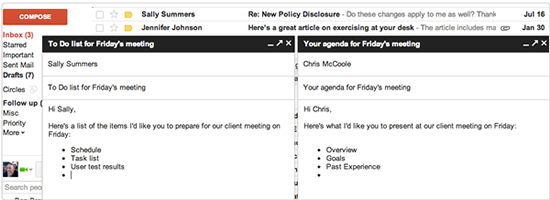
Gmail’s new compose experience 
Gmail
is rolling out out a new compose experience where you can write
messages in a cleaner, simpler format that puts the focus on your
message itself, not all the features around it.
Here’s how to try the new compose experience, as well as a quick look at key changes.
What’s different at a glance...
 * * |
|
How to try the new experience...
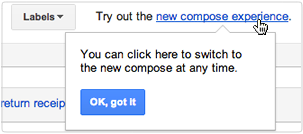 * * |
After clicking the Compose button, click the “new compose experience” link at the top of the message.
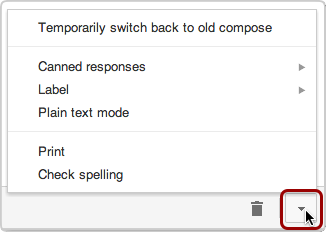
If you change your mind, you can temporarily switch back to Gmail’s previous experience. Open the Compose window, click the More options icon, and select “Temporarily switch back to old compose.”
|
A closer look at some changes...
 * * |
Entering addresses
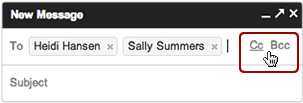
Enter addresses as usual in the To field (labeled Recipients when you’re not adding addresses).
While adding addresses, click the Cc or Bcc link to display fields for entering those recipients, too.
|
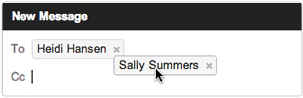 * * |
You can even drag recipients between fields.
|
 * * |
Finding the right contacts
If the contact you want doesn’t show up in the autocomplete list, you can click To, Cc, or Bcc to open a dialog for selecting contacts. Choose My contacts or All contacts from the drop menu or enter a query in the Search bar to narrow your results.
Check
the box of each contact you want to add to your message (addresses you
select appear at the bottom of the dialog). When you're done, click Select to add the addresses to your message.
|
 * * |
Modify addresses
|
Your window grows as you type!
To accommodate longer messages, your writing pane grows as your message gets longer.
To make the window even bigger, click the
 icon to open it in a separate window. Use the other two icons to minimize or close the window, which also saves your draft. icon to open it in a separate window. Use the other two icons to minimize or close the window, which also saves your draft. | 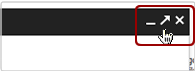 * * |
 * * |
Formatting text
Click the
 icon to see text formatting options, such as font size, bold, underline, and bullets. icon to see text formatting options, such as font size, bold, underline, and bullets.
|
 *
*
Remove Formatting
Click the
 icon to remove formatting from the text in your message. To view all emails in plain text, go to More Options and select Plain text. icon to remove formatting from the text in your message. To view all emails in plain text, go to More Options and select Plain text. |  * * |
 * * |
Attachments, photos, and links
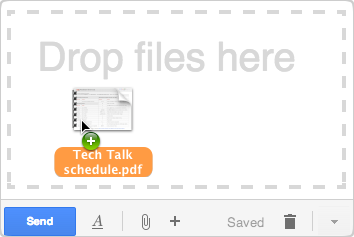
Add attachments by dragging from your desktop or Drive to the body of the message.
Or click the
 icon to browse for a file to attach. icon to browse for a file to attach.
|
 *
*
Tooltips and keyboard shortcuts
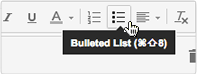
If you're not sure what an icon does, point at it to see a pop-up description.
For many actions, the description also includes a keyboard shortcut for performing the action without having to display the icon.
|  * * |
 * * |
Spell check, printing, and labels
Click the More options menu to see other tools, such as check spelling, plain text mode, print, and adding labels or canned responses.
|
 * * |
Reply, Reply all, & Forward
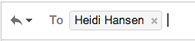
When replying to a message, open the Reply menu next to the recipient's name to display options to reply, reply all, or forward the message.
|
Edit your recipient list
Click in the recipient field...
|  * * |
to open an edit field for adding or removing addresses.
|  * * |
 * * |
Change a message subject
When replying to a message, open the Reply menu next to the recipient’s name and choose Edit subject. This copies the message to a new thread where you can enter a new subject.
|
Compose multiple messages at once!
While composing one message, click Compose
again to open another window. Minimize drafts you’re not working on now
to keep them handy for when you want to finish them later.
Here is a video overview if you prefer:
For a more in depth look, click here.
Subscribe to:
Posts (Atom)