Please spread the word. ITS is looking for an Information Technology Services Training Coordinator. See posting here.
Thursday, June 9, 2016
Monday, June 6, 2016
Summer Collaboration Challenge: Week3 - Your Personal Google Calendar #14weekchallenge
Did you know that your JasperNet account also

includes a personal Google Calendar? With Google Calendar, you can quickly schedule meetings and events, and get reminders about upcoming activities, so you always know what’s next. This week we'll show you how to setup your Google Calendar to keep track of classes, meetings, and events as well as configure Calendar to let others know when you are available.
 1 - Access Calendar by clicking the Google Apps menu and selecting "Calendar. The Google Apps menu can be accessed from any Google app including Gmail.

2 - In calendar, select the "gear" icon at the top right of the page and select "Settings".
3 - In the Calendar Settings screen select "Calendars" from the top menu, then click the link for the first calendar in the list. The first calendar should be your name.

Assignment (10 minutes): Complete the "Get Started with Calendar" tutorial to create and manage your first personal event, invite others, and set reminders.
https://apps.google.com/learning-center/products/calendar/get-started/
Getting started with Google Calendar
Let's start by getting familiar with Google Calendar. In this tutorial, we'll explore Calendar basics including creating meetings, reminders, and invitations as well as customizing the look and function of Calendar.
Configure Calendar
First, we'll need to make sure the Calendar is configured to securely share your Free/Busy information while keeping your event details private.
1 - Access Calendar by clicking the Google Apps menu and selecting "Calendar. The Google Apps menu can be accessed from any Google app including Gmail. 2 - In calendar, select the "gear" icon at the top right of the page and select "Settings".
3 - In the Calendar Settings screen select "Calendars" from the top menu, then click the link for the first calendar in the list. The first calendar should be your name.
4 - In the details screen, click "Share this Calendar" from the top menu. Recommended settings are below. Be sure to check the appropriate boxes and select "See only free/busy" from both drop-downs.
Your calendar has now been configured to the recommended settings to share your availability with others while keeping your event details private.
Get familiar with Google Calendar
https://apps.google.com/learning-center/products/calendar/get-started/

Tuesday, May 31, 2016
Partial License Server Outage
One of the primary license servers for specialty software is down. We are aware of the issue and working on resolving the problem as soon as possible. In the interim, certain pieces of software may be inaccessible.
If you are having trouble with a particular piece of software, please open a ticket with ITS by sending an email to [its@manhattan.edu] indicating which piece of software you are experiencing trouble with, when the trouble began, and how crucial the use of the software is. We are triaging based on specific issues reported, so please do not hesitate to inform us of the issue that you are experiencing.
List of known, potentially affected software:
If you are having trouble with a particular piece of software, please open a ticket with ITS by sending an email to [its@manhattan.edu] indicating which piece of software you are experiencing trouble with, when the trouble began, and how crucial the use of the software is. We are triaging based on specific issues reported, so please do not hesitate to inform us of the issue that you are experiencing.
List of known, potentially affected software:
- 3DS Abaqus Research License
- ANSYS
- Computer and Structures SAP2000
- COMSOL Multiphysics
- Maplesoft Maple
- National Instruments LabView
- Siemens NX
- Tekla Structures
- Trane Trace 700
- Wolfram Mathematica
Summer Collaboration Challenge: Week2 - Docs, Sheets, and Slides #14weekchallenge
 Still using Microsoft Office to edit files locally on your computer?
 Forget where you saved that important Word Doc or Excel Spreadsheet?
Lose track of which document version you passed around for review?
Does your PowerPoint presentation look differently when you are presenting from a different computer?
With online editing and sharing of docs (Word), sheets (Excel), and slides (Powerpoint) your problems will be solved....
Getting started with Docs
Let's start by getting introduced to Docs - an online replacement for Microsoft Word. The following tutorial will walk you through a number of steps to become more familiar with Docs. The same can be repeated for Sheets (replaces Excel) and Slides (replaces PowerPoint).
Assignment (10 minutes): Complete the "Introduction to Docs" tutorial by creating, editing, and sharing a new Doc.
Extra Credit: Try the same tutorial for Sheets and Slides.
Slides - https://apps.google.com/learning-center/products/slides/get-started/
Working OFFLINE
Perhaps the most important recent feature update to Google Apps (Docs, Slides, and Sheets) is the ability to work offline without an Internet connection. By enabling "Offline Mode" within Google Drive, you'll have access to edit all of your files from a Chrome browser wherever you are - even when WIFI is spotty or unavailable.
Assignment (1 minute): Enable OFFLINE MODE for Google Drive.
https://apps.google.com/learning-center/products/drive/get-started/#section-2-3
note: it may take a while to make all files and folders accessible offline. After enabling "offline mode", disconnect from WIFI and try creating and editing a new Doc or Sheet.
Working OFFLINE
Perhaps the most important recent feature update to Google Apps (Docs, Slides, and Sheets) is the ability to work offline without an Internet connection. By enabling "Offline Mode" within Google Drive, you'll have access to edit all of your files from a Chrome browser wherever you are - even when WIFI is spotty or unavailable.
Assignment (1 minute): Enable OFFLINE MODE for Google Drive.
https://apps.google.com/learning-center/products/drive/get-started/#section-2-3
note: it may take a while to make all files and folders accessible offline. After enabling "offline mode", disconnect from WIFI and try creating and editing a new Doc or Sheet.
Wednesday, May 25, 2016
Microsoft Pushing Windows 10 Update
Microsoft is being very proactive about pushing out its latest OS update. We are seeing that this OS is being pushed out to client computers without their involvement. If this has happens to you, it is no cause for concern. The new OS will look a little different. If you have any questions, please contact its@manhattan.edu
Monday, May 23, 2016
Summer Collaboration Challenge: Week1 - Google Drive #14weekchallenge
Let's kick off week 1 of the #14weekchallenge by introducing Google Drive, or Drive for short. Drive is part of your JasperNet account that provides virtually unlimited online storage space. We'll explore various parts Drive as a foundation for future weeks.
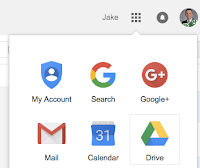 Starting to use Google Drive is a simple as clicking the Drive icon from the Google Apps menu at the top right of any Google App including Gmail. ITS provides documentation on getting started with Google Drive as well as answers to commonly asked questions about using Drive here:
Getting a new computer? No problem, let Drive Sync transfer your files to the new computer without the need to manage cumbersome backups and file transfers. It all happens behind the scenes while you work on more important things.
Assignment: Install and configure Google Drive Sync
https://tools.google.com/dlpage/drive
Google Drive Basics
 Starting to use Google Drive is a simple as clicking the Drive icon from the Google Apps menu at the top right of any Google App including Gmail. ITS provides documentation on getting started with Google Drive as well as answers to commonly asked questions about using Drive here:
Assignment: Click on the Google Apps menu and open Google Drive. Upload a file.
Sharing
Once you have added files to Google Drive, you can choose to keep the files private (default) or share with colleagues or friends. Files are accessible anywhere, from any device. Locate the file that you just uploaded or add another file to explore sharing settings in Drive.
Assignment: Share a file that you've uploaded to Google Drive.
Finding Files - Add to My Drive
Finding files is easy with Drive. Drive uses Google's powerful search technology to find files that best match your search. Drive also allows you to add files that have been shared with you to your Drive - not by copying the file, but rather giving you direct access to the same file that has been shared with you. Simply click the "Add to My Drive" icon to make the file available whenever you access Drive without the need to search.
Assignment: Find a file that has been shared with you and add to "My Drive"
Drive Sync - Backup
Google Drive Sync brings the power of Google Drive right to your computer. Drive Sync silently synchronizes files from your computer to the Google Cloud - giving you access to your files anywhere and anytime while still allowing you to edit them natively and locally on your computer. Keeping all of your files in the Google Drive folder of your computer ensures that your files are safe, secure, and backed up to Google's Drive cloud.Getting a new computer? No problem, let Drive Sync transfer your files to the new computer without the need to manage cumbersome backups and file transfers. It all happens behind the scenes while you work on more important things.
Assignment: Install and configure Google Drive Sync
https://tools.google.com/dlpage/drive
Wednesday, May 18, 2016
RESOLVED: Network Outage - Parts of Miguel Hall
RESOLVED:
As of approximately 3:50 we believe all Jaspernet Services to be functioning normally in Miguel hall.
UPDATED:
2:55PM - ITS has identified a failed network component in Miguel Hall. WIFI and "newer" network connections remain UNAFFECTED. Currently only some "older" connections in Miguel hall are offline. ITS is working to replace the failed component.
2:39PM - ITS has received reports of network issues in Memorial and Miguel Halls. We are currently investigating and will have an update shortly.
As of approximately 3:50 we believe all Jaspernet Services to be functioning normally in Miguel hall.
UPDATED:
2:55PM - ITS has identified a failed network component in Miguel Hall. WIFI and "newer" network connections remain UNAFFECTED. Currently only some "older" connections in Miguel hall are offline. ITS is working to replace the failed component.
2:39PM - ITS has received reports of network issues in Memorial and Miguel Halls. We are currently investigating and will have an update shortly.
Subscribe to:
Posts (Atom)