Showing posts sorted by relevance for query get started with team drives. Sort by date Show all posts

Tuesday, April 30, 2019

G Suite Update: The “Team Drives” feature of Google Drive will be renamed to “shared drives.”

What’s changing 

The “Team Drives” feature of Google Drive will be renamed to “shared drives.” This will impact: 
  • Drive on web and mobile: Timing may vary depending on the specific platform. See below for more info.
  • Drive File Stream: Beginning on May 31, 2019, with the Drive File Stream version 31 release, “Team Drives” will be renamed to “shared drives” in the Drive File Stream navigation. This may require you to update settings on your devices (see below for more info). 

Why it’s changing 

This change will not impact Team Drives functionality; it is simply a name change. Our users have told us that they use Team Drives for a lot more than sharing within teams, so “shared drives” makes it easier to understand how you could use them.


How to get started 

  • End users: In Google Drive, in the left hand side panel, “Team Drives” will be renamed to “Shared drives.” Any desktop shortcuts that link to content inside of shared drives will need to be updated.
For more details on the transition refer to this G Suite Updates Blog Post

Refer to this KBA on Google Drive Best Practices 
For more details on using Team Drives review this blog post: Get Started with Team Drives


Tuesday, March 21, 2017

Get Started with Team Drives

Team Drives are shared spaces where teams can store their files and guarantee that every member has the most up-to-date information, no matter the time or place. 

Team Drives make onboarding easy, because every person and Google Group added to a Team Drive gets instant access to that team’s documents. Moreover, Team Drives are designed to store the team’s work collectively, so if a document’s creator moves off of the team that document doesn’t go with them. 

Advanced access controls make Team Drives even more robust, preventing team members from accidentally removing or deleting files that others need.


Find out more about team drives. We are early adopters so more features are sure to come down the pike.

partially reposted from: https://gsuite.google.com/learning-center/products/drive/get-started-team-drive/

Tuesday, May 8, 2018

Reminder: Transition to Google Drive File Stream

Google Drive Sync ends support on  May 12th, 2018.

For more details refer to Google's post Important Additional Information about the Legacy Google Drive Desktop Sync Client Shutdown on May 12.

The most important things to know include:

  1. If you haven't already, upgrade to a newer sync solution.
  2. The turn-down will be gradual.
  3. Once the client shuts down for you, the Google Drive folder will stop syncing.


About:
Drive File Stream is a new way to access all of your Google Drive files directly from your Mac or PC, without using up all your disk space. Unlike traditional file sync tools, Drive File Stream doesn’t require you to download your files first in order to access them from your computer. Instead, when you need to view or edit a file, it automatically streams from the cloud, on-demand. With Drive File Stream, your team will spend less time waiting for files to sync, no time worrying about disk space, and more time being productive.
With Drive File Stream, you can:
  • Quickly see all your Google Drive files in Finder/Explorer (including Team Drives).
  • Browse and organize Google Drive files without downloading all of them to your computer.
  • Choose which files or folders you'd like to make available offline.
  • Open files in common apps like Microsoft Office and Adobe Photoshop.

Environment

Windows
MacOSX
Google Drive

How do I get started?


Visit the Drive Help Center to install Drive File Stream and get started.

Instructions for Installing Google Drive File Stream:
Install Google Drive Stream.  At the conclusion of the installation, you will get a pop up asking whether you want to replace Google Drive Sync with Drive Stream or whether you want to use both.  It is recommended that you select "Yes" indicating that you wish to replace.


What about the current Drive application? Before installing File Stream, Google recommends removing the current Drive folder. For ease of use, we think it's best to uninstall the current Drive client. 

Uninstall Drive and install File Stream

1. Uninstall the previous Google Drive app or Backup and Sync if it is present on your computer. To uninstall, navigate to the Windows icon in the bottom left corner of the screen and search for "Control Panel" and proceed to open it. You should be greeted with this window:
image depicting control panel optionsOnce you click on "Program and Features", you will be shown a list of programs that are installed on your computer. Navigate to the Google Drive app that you previously installed on your PC and select it. You will then see appear the option to uninstall that program. Proceed with the uninstall to completely remove the program from your PC.
2. Delete Google Drive Sync folder from your computer. It is a local folder only now and no longer syncs.
3. Install Drive File Stream. You can find it here. Depending on preferences of the User, it can be a good idea to create shortcuts on the desktop and in the Favorites or Quick Access areas of Windows and MacOS. We also recommend removing any shortcuts to the previous Google Drive folder to avoid confusion.
Also, the Drive File Stream icon in the Windows task bar will be grey, that should be the only Google Drive icon found in the task bar.  If you see the older Google Drive Sync colored icon still on your computer go back to step 2 and delete old Google Drive Sync folder.
file_stream_setup.gif

Feel free to contact the ITS Help Desk with any support in this transition.

Friday, March 2, 2018

Reminder: Transition to Google Drive File Stream

Google Drive Sync ends support on  May 12th, 2018.

Google Drive for Mac/PC—was going to shut down completely on March 12th, 2018. In response to customer feedback, Google is delaying that shutdown date to May 12th, 2018.

About:

Drive File Stream is a new way to access all of your Google Drive files directly from your Mac or PC, without using up all your disk space. Unlike traditional file sync tools, Drive File Stream doesn’t require you to download your files first in order to access them from your computer. Instead, when you need to view or edit a file, it automatically streams from the cloud, on-demand. With Drive File Stream, your team will spend less time waiting for files to sync, no time worrying about disk space, and more time being productive.
With Drive File Stream, you can:
  • Quickly see all your Google Drive files in Finder/Explorer (including Team Drives).
  • Browse and organize Google Drive files without downloading all of them to your computer.
  • Choose which files or folders you'd like to make available offline.
  • Open files in common apps like Microsoft Office and Adobe Photoshop.

Environment

Windows
MacOSX
Google Drive

How do I get started?


Visit the Drive Help Center to install Drive File Stream and get started.

Instructions for Installing Google Drive File Stream:
Install Google Drive Stream.  At the conclusion of the installation, you will get a pop up asking whether you want to replace Google Drive Sync with Drive Stream or whether you want to use both.  It is recommended that you select "Yes" indicating that you wish to replace.


What about the current Drive application? Before installing File Stream, Google recommends removing the current Drive folder. For ease of use, we think it's best to uninstall the current Drive client. 

Uninstall Drive and install File Stream

1. Uninstall the previous Google Drive app or Backup and Sync if it is present on your computer. To uninstall, navigate to the Windows icon in the bottom left corner of the screen and search for "Control Panel" and proceed to open it. You should be greeted with this window:
image depicting control panel optionsOnce you click on "Program and Features", you will be shown a list of programs that are installed on your computer. Navigate to the Google Drive app that you previously installed on your PC and select it. You will then see appear the option to uninstall that program. Proceed with the uninstall to completely remove the program from your PC.
2. Delete Google Drive Sync folder from your computer. It is a local folder only now and no longer syncs.
3. Install Drive File Stream. You can find it here. Depending on preferences of the User, it can be a good idea to create shortcuts on the desktop and in the Favorites or Quick Access areas of Windows and MacOS. We also recommend removing any shortcuts to the previous Google Drive folder to avoid confusion.
Also, the Drive File Stream icon in the Windows task bar will be grey, that should be the only Google Drive icon found in the task bar.  If you see the older Google Drive Sync colored icon still on your computer go back to step 2 and delete old Google Drive Sync folder.
file_stream_setup.gif

Feel free to contact the ITS Help Desk with any support in this transition.

Tuesday, November 28, 2017

Reminder: Transition to Google Drive File Stream

Google Drive Sync ends support on December 11, 2017.
Solution:
Install Google Drive Stream.  At the conclusion of the installation, you will get a pop up asking whether you want to replace Google Drive Sync with Drive Stream or whether you want to use both.  It is recommended that you select "Yes" indicating that you wish to replace.


What about the current Drive application? Before installing File Stream, Google recommends removing the current Drive folder. For ease of use, we think it's best to uninstall the current Drive client. 

Uninstall Drive and install File Stream

1. Uninstall the previous Google Drive app or Backup and Sync if it is present on your computer. To uninstall, navigate to the Windows icon in the bottom left corner of the screen and search for "Control Panel" and proceed to open it. You should be greeted with this window:
image depicting control panel optionsOnce you click on "Program and Features", you will be shown a list of programs that are installed on your computer. Navigate to the Google Drive app that you previously installed on your PC and select it. You will then see appear the option to uninstall that program. Proceed with the uninstall to completely remove the program from your PC.
2. Delete Google Drive Sync folder from your computer. It is a local folder only now and no longer syncs.
3. Install Drive File Stream. You can find it here. Depending on preferences of the User, it can be a good idea to create shortcuts on the desktop and in the Favorites or Quick Access areas of Windows and MacOS. We also recommend removing any shortcuts to the previous Google Drive folder to avoid confusion.
Also, the Drive File Stream icon in the Windows task bar will be grey, that should be the only Google Drive icon found in the task bar.  If you see the older Google Drive Sync colored icon still on your computer go back to step 2 and delete old Google Drive Sync folder.
file_stream_setup.gif

About:

Drive File Stream is a new way to access all of your Google Drive files directly from your Mac or PC, without using up all your disk space. Unlike traditional file sync tools, Drive File Stream doesn’t require you to download your files first in order to access them from your computer. Instead, when you need to view or edit a file, it automatically streams from the cloud, on-demand. With Drive File Stream, your team will spend less time waiting for files to sync, no time worrying about disk space, and more time being productive.
With Drive File Stream, you can:
  • Quickly see all your Google Drive files in Finder/Explorer (including Team Drives).
  • Browse and organize Google Drive files without downloading all of them to your computer.
  • Choose which files or folders you'd like to make available offline.
  • Open files in common apps like Microsoft Office and Adobe Photoshop.

Environment

Windows
MacOSX
Google Drive

How do I get started?

Visit the Drive Help Center to install Drive File Stream and get started.

Monday, December 4, 2017

Reminder: Transition to Google Drive File Stream

Google Drive Sync ends support on December 11, 2017.

Drive File Stream is a new way to access all of your Google Drive files directly from your Mac or PC, without using up all your disk space. Unlike traditional file sync tools, Drive File Stream doesn’t require you to download your files first in order to access them from your computer. Instead, when you need to view or edit a file, it automatically streams from the cloud, on-demand. With Drive File Stream, your team will spend less time waiting for files to sync, no time worrying about disk space, and more time being productive.
With Drive File Stream, you can:
  • Quickly see all your Google Drive files in Finder/Explorer (including Team Drives).
  • Browse and organize Google Drive files without downloading all of them to your computer.
  • Choose which files or folders you'd like to make available offline.
  • Open files in common apps like Microsoft Office and Adobe Photoshop.

Environment

Windows
MacOSX
Google Drive

How do I get started?

Visit the Drive Help Center to install Drive File Stream and get started.
Solution:
Install Google Drive Stream.  At the conclusion of the installation, you will get a pop up asking whether you want to replace Google Drive Sync with Drive Stream or whether you want to use both.  It is recommended that you select "Yes" indicating that you wish to replace.


What about the current Drive application? Before installing File Stream, Google recommends removing the current Drive folder. For ease of use, we think it's best to uninstall the current Drive client. 

Uninstall Drive and install File Stream

1. Uninstall the previous Google Drive app or Backup and Sync if it is present on your computer. To uninstall, navigate to the Windows icon in the bottom left corner of the screen and search for "Control Panel" and proceed to open it. You should be greeted with this window:
image depicting control panel optionsOnce you click on "Program and Features," you will be shown a list of programs that are installed on your computer. Navigate to the Google Drive app that you previously installed on your PC and select it. You will then see appear the option to uninstall that program. Proceed with the uninstall to completely remove the program from your PC.
2. Delete Google Drive Sync folder from your computer. It is a local folder only now and no longer syncs.
3. Install Drive File Stream. You can find it here. Depending on preferences of the User, it can be a good idea to create shortcuts on the desktop and in the Favorites or Quick Access areas of Windows and MacOS. We also recommend removing any shortcuts to the previous Google Drive folder to avoid confusion.
Also, the Drive File Stream icon in the Windows task bar will be grey, that should be the only Google Drive icon found in the task bar.  If you see the older Google Drive Sync colored icon still on your computer go back to step 2 and delete old Google Drive Sync folder.
file_stream_setup.gif

Monday, December 11, 2017

Reminder: Transition to Google Drive File Stream

Google Drive Sync ends support on December 11, 2017.

Drive File Stream is a new way to access all of your Google Drive files directly from your Mac or PC, without using up all your disk space. Unlike traditional file sync tools, Drive File Stream doesn’t require you to download your files first in order to access them from your computer. Instead, when you need to view or edit a file, it automatically streams from the cloud, on-demand. With Drive File Stream, your team will spend less time waiting for files to sync, no time worrying about disk space, and more time being productive.
With Drive File Stream, you can:
  • Quickly see all your Google Drive files in Finder/Explorer (including Team Drives).
  • Browse and organize Google Drive files without downloading all of them to your computer.
  • Choose which files or folders you'd like to make available offline.
  • Open files in common apps like Microsoft Office and Adobe Photoshop.
Note: This is only relevant for those that use a sync app such as Google Drive Sync.  If you only use the web app (https://drive.google.com/) no action is required.

Environment

Windows
MacOSX
Google Drive

How do I get started?

Visit the Drive Help Center to install Drive File Stream and get started.
Solution:
Install Google Drive Stream.  At the conclusion of the installation, you will get a pop up asking whether you want to replace Google Drive Sync with Drive Stream or whether you want to use both.  It is recommended that you select "Yes" indicating that you wish to replace.


What about the current Drive application? Before installing File Stream, Google recommends removing the current Drive folder. For ease of use, we think it's best to uninstall the current Drive client. 

Uninstall Drive and install File Stream

1. Uninstall the previous Google Drive app or Backup and Sync if it is present on your computer. To uninstall, navigate to the Windows icon in the bottom left corner of the screen and search for "Control Panel" and proceed to open it. You should be greeted with this window:
image depicting control panel optionsOnce you click on "Program and Features," you will be shown a list of programs that are installed on your computer. Navigate to the Google Drive app that you previously installed on your PC and select it. You will then see appear the option to uninstall that program. Proceed with the uninstall to completely remove the program from your PC.
2. Delete Google Drive Sync folder from your computer. It is a local folder only now and no longer syncs.
3. Install Drive File Stream. You can find it here. Depending on preferences of the User, it can be a good idea to create shortcuts on the desktop and in the Favorites or Quick Access areas of Windows and MacOS. We also recommend removing any shortcuts to the previous Google Drive folder to avoid confusion.
Also, the Drive File Stream icon in the Windows task bar will be grey, that should be the only Google Drive icon found in the task bar.  If you see the older Google Drive Sync colored icon still on your computer go back to step 2 and delete old Google Drive Sync folder.
file_stream_setup.gif

Tuesday, October 24, 2017

Google Drive File Stream

Issue:
Google Drive Sync ends support on December 11, 2017.
Solution:
Install Google Drive Stream.  At the conclusion of the installation, you will get a pop up asking whether you want to replace Google Drive Sync with Drive Stream or whether you want to use both.  It is recommended that you select "Yes" indicating that you wish to replace.


About:

Drive File Stream is a new way to access all of your Google Drive files directly from your Mac or PC, without using up all your disk space. Unlike traditional file sync tools, Drive File Stream doesn’t require you to download your files first in order to access them from your computer. Instead, when you need to view or edit a file, it automatically streams from the cloud, on-demand. With Drive File Stream, your team will spend less time waiting for files to sync, no time worrying about disk space, and more time being productive.
With Drive File Stream, you can:
  • Quickly see all your Google Drive files in Finder/Explorer (including Team Drives).
  • Browse and organize Google Drive files without downloading all of them to your computer.
  • Choose which files or folders you'd like to make available offline.
  • Open files in common apps like Microsoft Office and Adobe Photoshop.

Environment

Windows
MacOSX
Google Drive

How do I get started?
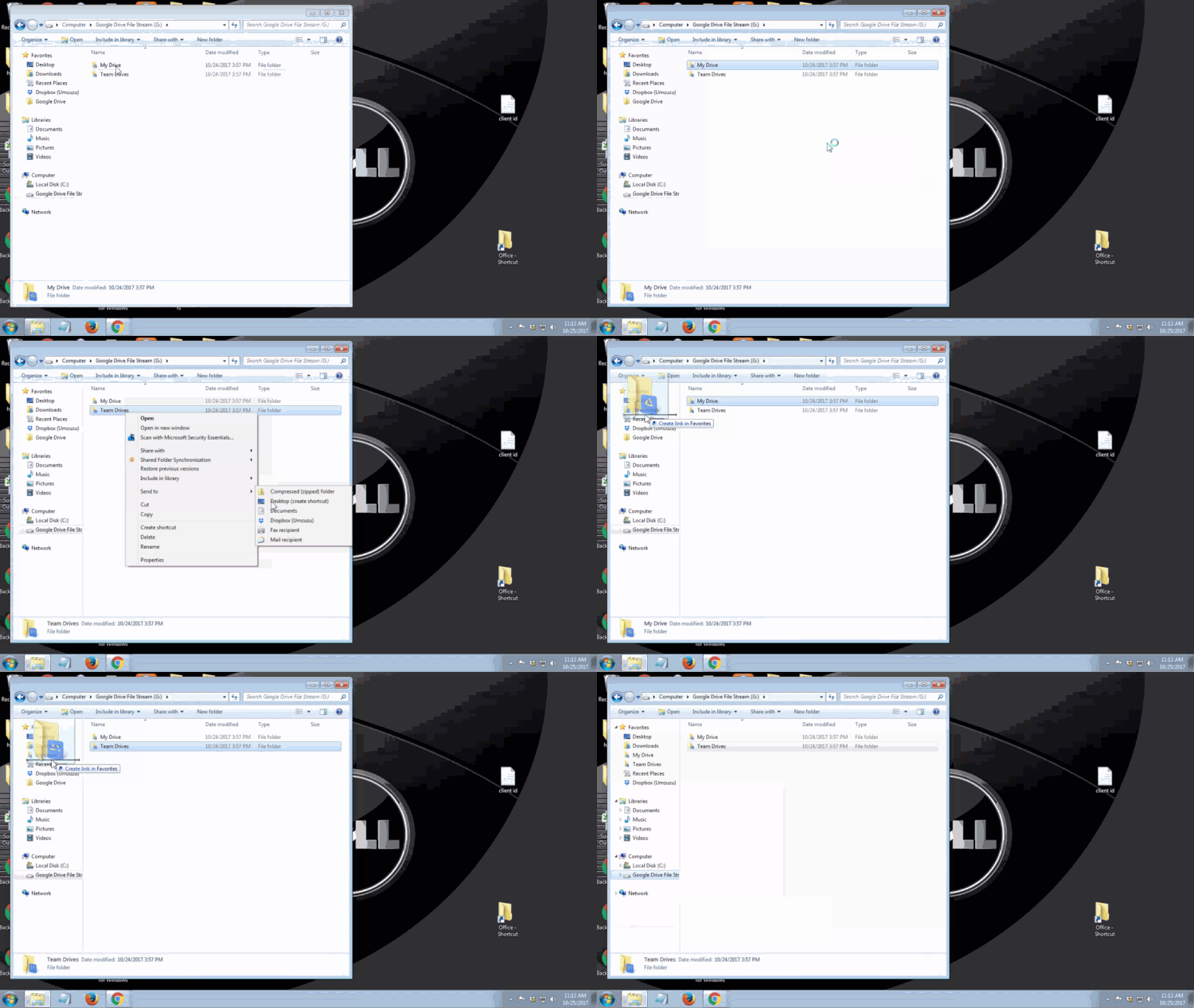
Visit the Drive Help Center to install Drive File Stream and get started.

Tuesday, October 17, 2017

Google Drive Just Got Easier For You and Your Team!

We’re pleased to announce Drive File Stream, a new application for your Mac or PC. Use Drive File Stream to access all your Google Drive files from your computer while using less disk space and decreasing sync time.
How does it work?
With Drive File Stream, you can:
  • Quickly see all your Google Drive files in Finder/Explorer (including Team Drives).
  • Browse and organize Google Drive files without downloading all of them to your computer.
  • Choose which files or folders you'd like to make available offline.
  • Open files in common apps like Microsoft Office and Adobe Photoshop.
Click here for more information regarding Drive File Stream


How do I get started?
Visit the Drive Help Center to install Drive File Stream and get started.


Click here for a Comparison: Google Backup and Sync vs. Drive File Stream

Partially reposted from https://gsuite.google.com/campaigns/index__drive-fs-eap.html